How to Scrape Google Maps for Business Leads in 2026 Free Method
Use a Google Maps scraper to collect business names, phones, websites, emails, and CSV lead lists for outreach.
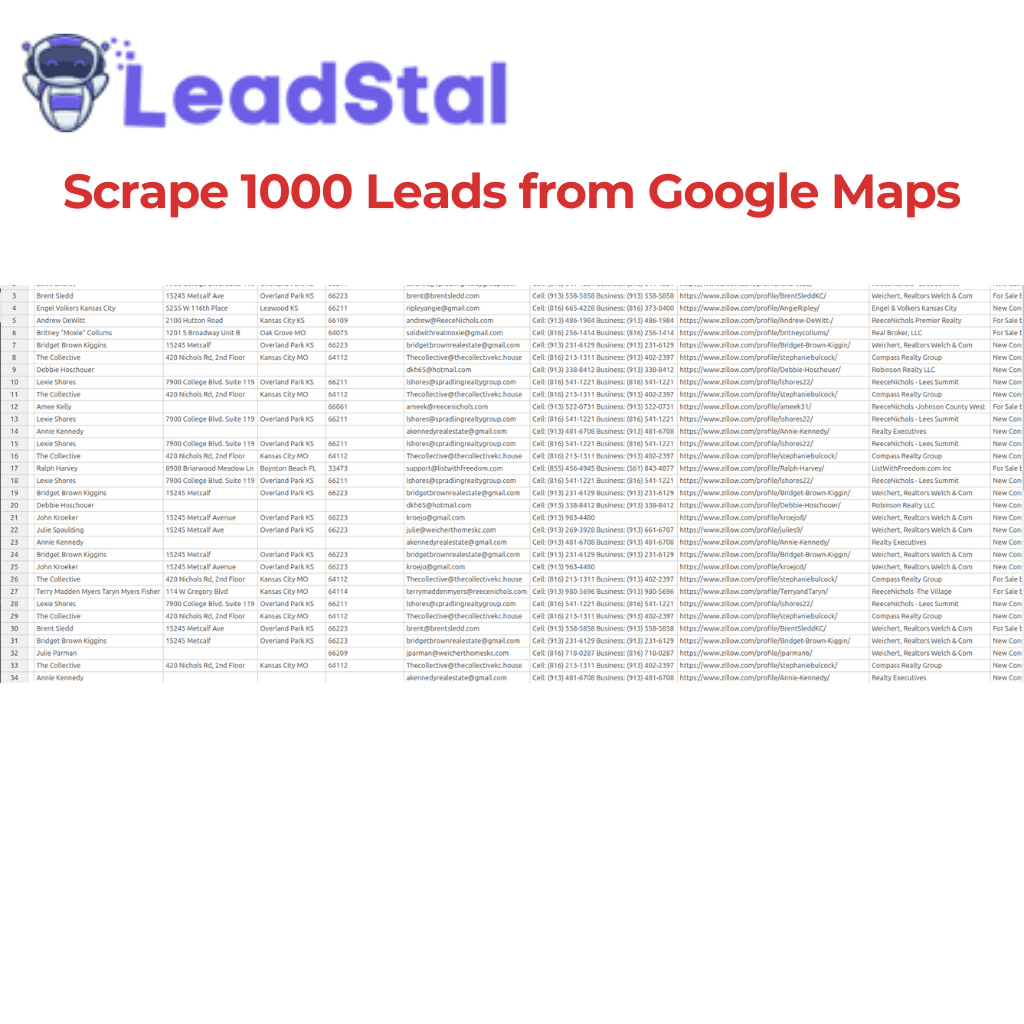
You can extract business names, phones, websites, addresses, and emails when available from Google Maps using a free Chrome extension in under 10 minutes. A google maps scraper helps turn local search results into a clean CSV lead list for sales, agency outreach, recruiting, and B2B prospecting.
If you sell to local businesses, Google Maps is one of the fastest places to find prospects. You can search by niche and city, such as “dentists in Austin,” “roofers in Dallas,” or “restaurants in Miami,” then collect public business details for outreach.
Manual research takes too long. Opening each profile, copying the business name, phone number, website, address, and email source one by one can waste hours. A Google Maps scraper makes this work faster and cleaner.
LeadStal’s Google Maps Lead Generator helps users collect local business leads, export CSV files, and prepare lists for cold email campaigns. After scraping, you can check emails with the Email Validator, write messages with Email Templates, and send campaigns through mail.leadstal.com.
What Is a Google Maps Scraper?
A Google Maps scraper is a tool that extracts public business data from Google Maps listings and search results.
It can help collect:
- Business names
- Phone numbers
- Website URLs
- Business addresses
- Business categories
- Ratings and review data when available
- Opening hours when available
- Emails when available or found from public website sources
- Location details
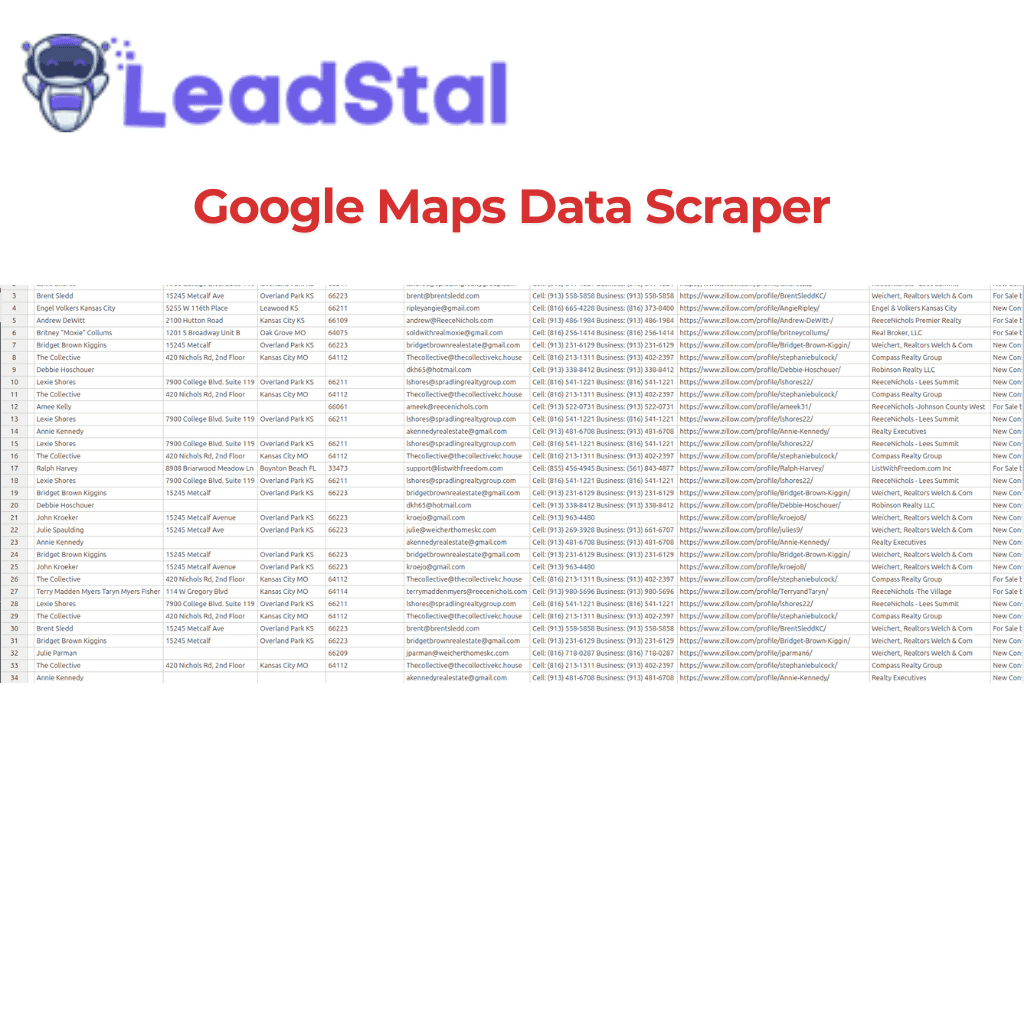
- CSV-ready lead data
For local B2B teams, this helps build lead lists by niche, city, state, or service area.
Why Google Maps Lead Generation Works
Google Maps is useful because people use it to find real local companies. Most listings belong to active businesses with phone numbers, locations, websites, reviews, and service details.
That makes it useful for:
- Local SEO agencies
- Web design agencies
- Lead generation teams
- Sales teams
- Recruiters
- Freelancers
- Real estate service providers
- Marketing teams
- Appointment setters
- Small business sellers
If a business has a Google Maps listing, it usually wants calls, visits, quote requests, bookings, or local customers. That gives your outreach a clear reason.
What Data Can You Extract From Google Maps?
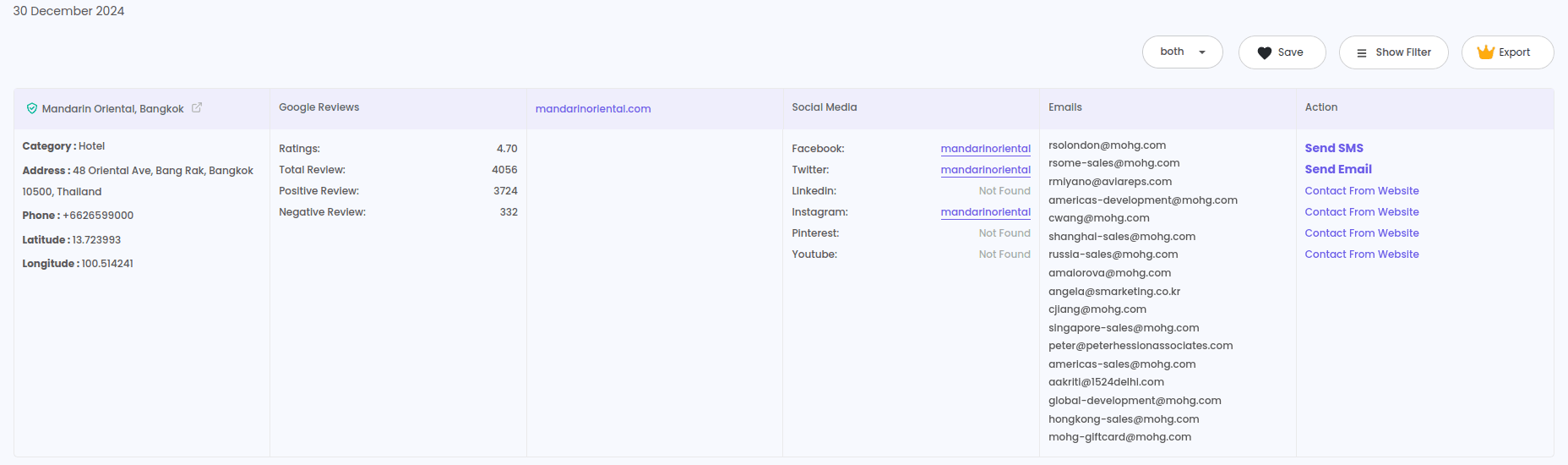
The data you can extract depends on what is publicly shown on each listing and what related public sources provide.
A Google Maps scraper may collect:
Google Maps itself may not show direct emails for many businesses. In those cases, LeadStal can help collect the website and find emails from public web sources when available.
Is Scraping Google Maps Legal?
Scraping public business data should be handled with care. Public data is still subject to platform terms, privacy rules, anti-spam laws, and outreach rules in your region.
A safe working rule is simple:
Use business data responsibly, contact only relevant prospects, include opt-out options where required, and avoid spam-style outreach.
This article is not legal advice. Before large-scale scraping or outreach, check the rules that apply to your country, state, and target market.
How to Scrape Google Maps for Business Leads
Here is the simple process.
Step 1: Install the Free Google Maps Finder
Start with the Google Maps Lead Generator. You can also use LeadStal’s Chrome extension path for map-based scraping: Maps Scraper Leads Extractor by LeadStal.
The goal is to run the tool while researching local businesses, then collect business details into a structured list.
Step 2: Choose One Niche and One City
Do not start with a broad search. A focused search gives better leads and easier outreach.
Good examples:
- Dentists in Austin, TX
- Roofing companies in Dallas, TX
- HVAC companies in Phoenix, AZ
- Lawyers in Chicago, IL
- Plumbers in Tampa, FL
- Restaurants in Miami, FL
- Auto repair shops in Denver, CO
- Real estate agencies in Orlando, FL
A search like “all businesses in USA” is too broad. A search like “roofers in Dallas, TX” is much better.
Step 3: Run the Google Maps Scraper
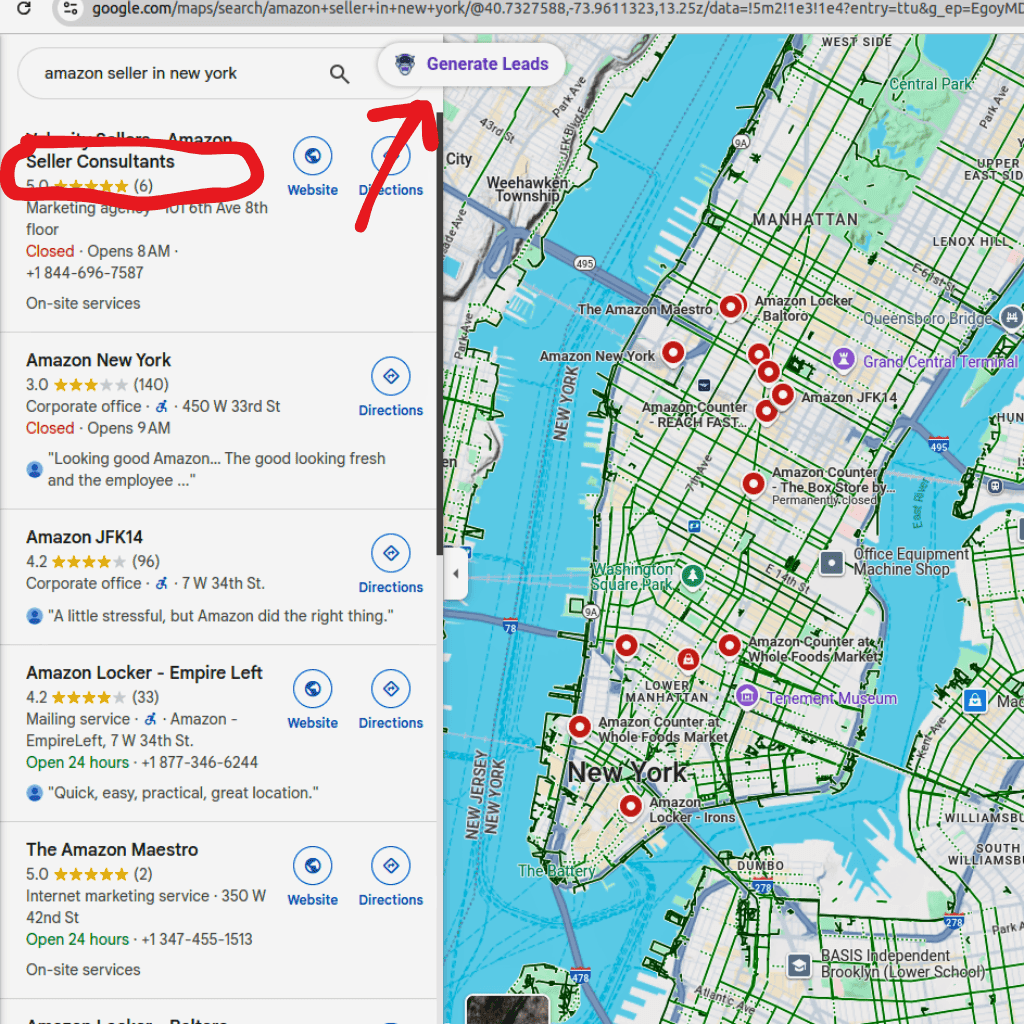
Open Google Maps, search your niche and location, then run the LeadStal scraper.
The tool scans the local results and collects available business details. This can include names, phone numbers, websites, addresses, categories, and other public data.
For better results, scrape one category at a time. If you mix dentists, lawyers, roofers, and restaurants in the same list, your campaign message will be weak.
Step 4: Review the Lead List
After the scraper pulls the data, review it before export.
Check for:
- Duplicate businesses
- Wrong categories
- Missing websites
- Missing phone numbers
- Out-of-area listings
- Businesses that do not match your offer
A clean list is more valuable than a huge messy list.
Step 5: Export to CSV
Export the scraped leads into a CSV file.
CSV files are easy to use in:
- LeadStal
- CRM tools
- Sales sheets
- Calling lists
- Cold email campaigns
- Client lead reports
A CSV export gives you control over sorting, filtering, cleaning, and campaign prep.
Step 6: Find Missing Emails
Many Google Maps listings show websites but not emails. After export, use email finding tools to fill missing contact data.
Useful LeadStal tools:
- Bulk Email Finder for large lists
- Single Email Finder for one company domain
- Person Email Finder for a specific owner or manager
- Website Email Extractor to pull visible emails from business websites
- Google Search Email Finder for search-based email discovery
This helps turn a basic Google Maps list into an outreach-ready contact list.
Step 7: Validate Emails Before Sending
Before sending any campaign, use the Email Validator.
Email validation helps remove invalid or risky addresses from your list. This matters because poor contacts waste send volume and can hurt campaign quality.
A cleaner list gives your outreach a better chance to get replies.
Step 8: Write a Short Cold Email
Use Email Templates as a starting point, then edit the message for your niche.
A good local cold email should be short and specific.
Example:
“Hi Mark, I found your roofing company while checking local providers in Dallas. We help roofers get more quote requests from homeowners in their service area. Open to seeing a quick idea for your market?”
Keep the message focused on one result. Do not add too many services in the first email.
Step 9: Import Leads Into mail.leadstal.com
After your CSV is clean, import the list into mail.leadstal.com.
Inside mail.leadstal.com, you can:
- Manage lead lists
- Connect sender accounts
- Create campaigns
- Add follow-up steps
- Track opens, replies, clicks, and unsubscribes
- Manage replies in Unibox
- Review campaign results in Analytics
This helps move from scraped data to real conversations.
CSV Export vs Direct Campaign Import
If you are new, start with CSV export. Clean the file, validate emails, then import into mail.leadstal.com.
Mini Playbook: Turn Scraped Leads Into Replies
Scraping is only the first step. Replies come from targeting, clean data, and a clear offer.
Use this simple playbook:
- Pick one niche and one city
- Scrape 100 to 300 leads
- Remove poor-fit businesses
- Find missing emails
- Validate the list
- Write one short email for that niche
- Add two short follow-ups
- Send through mail.leadstal.com
- Reply quickly from Unibox
- Track what works in Analytics
Do not test too many things at once. Start with one clear offer and one audience.
Best Niches to Scrape From Google Maps
Google Maps works well for local businesses with service areas, reviews, and customer calls.
Good niches include:
- Dentists
- Roofers
- Plumbers
- HVAC companies
- Lawyers
- Clinics
- Restaurants
- Gyms
- Salons
- Auto repair shops
- Real estate agencies
- Cleaning companies
- Pest control
- Moving companies
- Contractors
If you sell local SEO, web design, lead generation, review growth, booking systems, or appointment setting, these niches can be strong starting points.
Google Maps Scraper vs Other LeadStal Lead Tools
The best source depends on your target market. For local service businesses, Google Maps, Yellow Pages, Yelp, Manta, and Bing Maps can work together.
Common Mistakes When Scraping Google Maps
Scraping Too Broadly
Do not scrape every business type in one run. Pick one niche and one location.
Skipping Data Review
Scraped data still needs review. Remove duplicates and poor-fit leads before sending.
Expecting Every Listing to Have Email
Many listings show websites and phone numbers, not direct emails. Use email finding tools after scraping.
Sending Without Validation
Always validate emails before campaigns.
Using Generic Copy
A plumber and dentist need different outreach messages. Write for the niche.
Ignoring Phone Numbers
Phone numbers are useful for call follow-up where allowed. Many local businesses still rely on calls.
Not Tracking Replies
Use mail.leadstal.com to track opens, replies, clicks, and campaign status.
FAQ: Google Maps Scraper
1. What is a Google Maps scraper?
A Google Maps scraper is a tool that extracts public business data from Google Maps listings and turns it into a lead list.
2. Can I scrape Google Maps for free?
Yes. You can use LeadStal’s free Google Maps finder or Chrome extension to collect local business leads.
3. What data can I extract from Google Maps?
You can collect business names, phone numbers, websites, addresses, categories, ratings, and other public listing data. Emails may be found when available from public sources.
4. Can I extract emails from Google Maps?
Some listings may not show emails directly. You can collect websites from Google Maps, then use LeadStal email finder tools to find public business emails.
5. Is scraping Google Maps legal?
Public data use depends on platform terms, privacy laws, anti-spam laws, and outreach rules in your region. Use data responsibly and check the rules that apply to you.
6. Can I export Google Maps leads to CSV?
Yes. LeadStal lets users export scraped leads to CSV for cleaning, CRM upload, or campaign setup.
7. What is the best niche to scrape from Google Maps?
Local service niches often work well, such as dentists, roofers, plumbers, HVAC companies, lawyers, clinics, restaurants, and real estate agencies.
8. How many leads should I scrape first?
Start with 100 to 300 leads from one niche and one city. This is enough to test list quality and outreach message fit.
9. What should I do after scraping Google Maps leads?
Clean the list, find missing emails, validate contacts, write a short email, and send through mail.leadstal.com.
10. How do I improve reply rates?
Use a focused niche, clean contact data, short email copy, relevant follow-ups, and fast replies from Unibox.
Final Thoughts
A google maps scraper is one of the fastest ways to build local business lead lists in 2026. You can search any niche and city, collect public business details, export the data to CSV, and prepare outreach without hours of manual copy-paste.
LeadStal helps with the full process. Use the Google Maps Lead Generator to collect local leads. Use email finder tools to find missing contacts. Use the Email Validator to clean the list. Use Email Templates to write better outreach. Then use mail.leadstal.com to send campaigns, track replies, and manage conversations.
Start simple: pick one niche, scrape one city, validate the list, and send a small campaign.
Put this into action, for free
Find verified leads from Google Maps, Instagram and 30+ sources with LeadStal's free tools.
Start finding leads freeComments (3)
 Priya Nair· 2 days ago
This is exactly what I needed, pulled 300 leads in my niche the same afternoon. The export to CSV worked flawlessly.