How to Export Google Maps Data to Excel or CSV (2026 Guide)
Stop copying business data by hand. Learn how to export Google Maps data to Excel or CSV in minutes using automated scrapers to build better lead lists.
Imagine sitting at your desk, clicking on one business listing at a time. You copy the name, then the phone number, then the website. You paste them into a spreadsheet. Five minutes later, you have exactly two leads. At this rate, building a list of 500 prospects will take you several days of mind-numbing work. This manual process is exactly what holds many small businesses and agencies back from growing.
Google Maps is the most accurate directory of local businesses on the planet. It contains millions of entries with names, physical locations, ratings, and links to websites. However, Google does not provide a simple button to grab that data. If you want to move that information into your sales pipeline, you need a way to export google maps data to excel.
In 2026, smart marketers don't waste time with manual entry. They use automation to turn map results into organized spreadsheets. This guide shows you how to pull data from maps and move it into a format that your sales team can actually use to close deals.
What It Means to Export Map Data
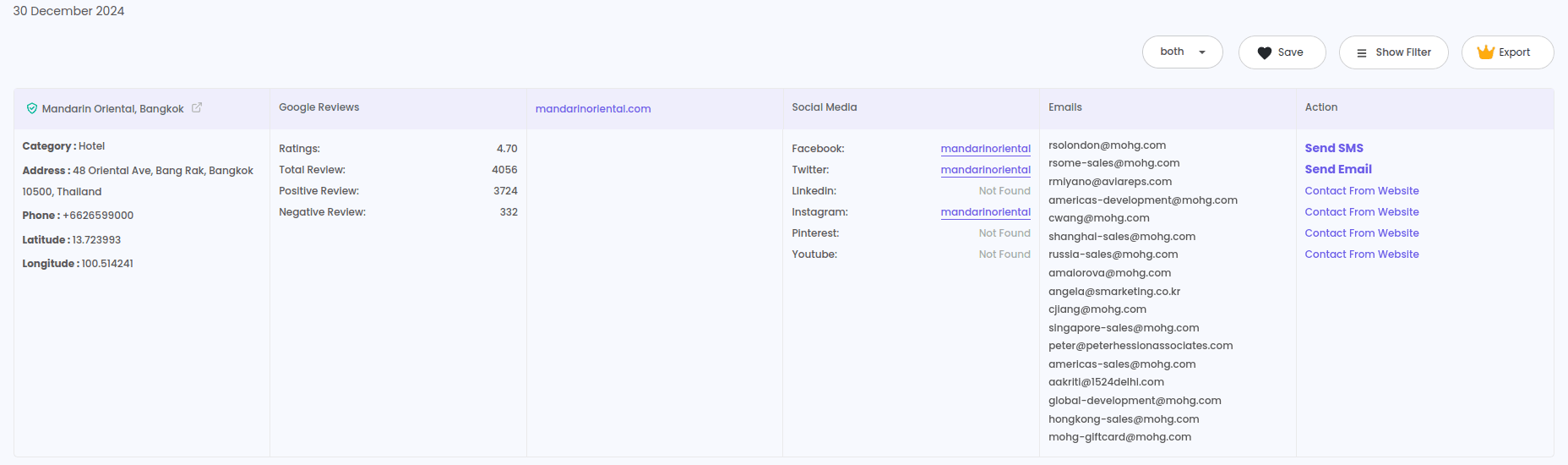
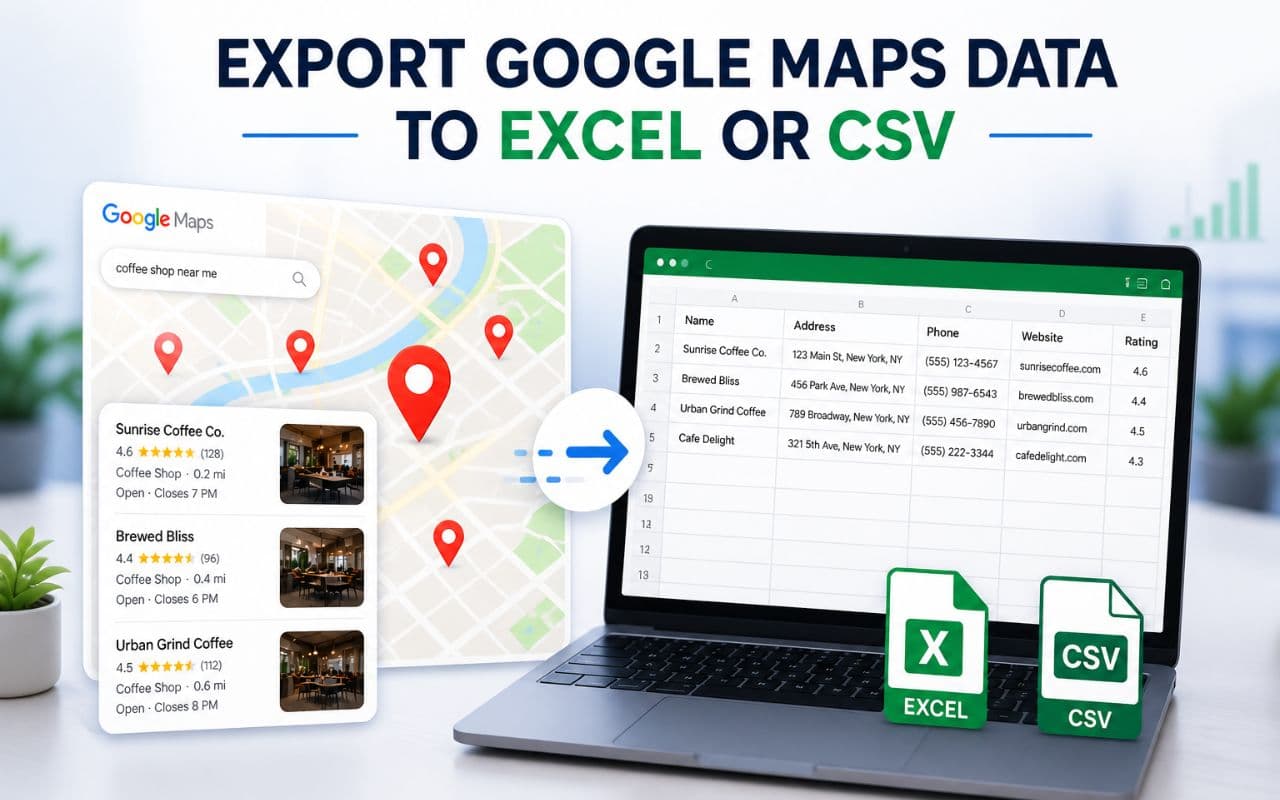
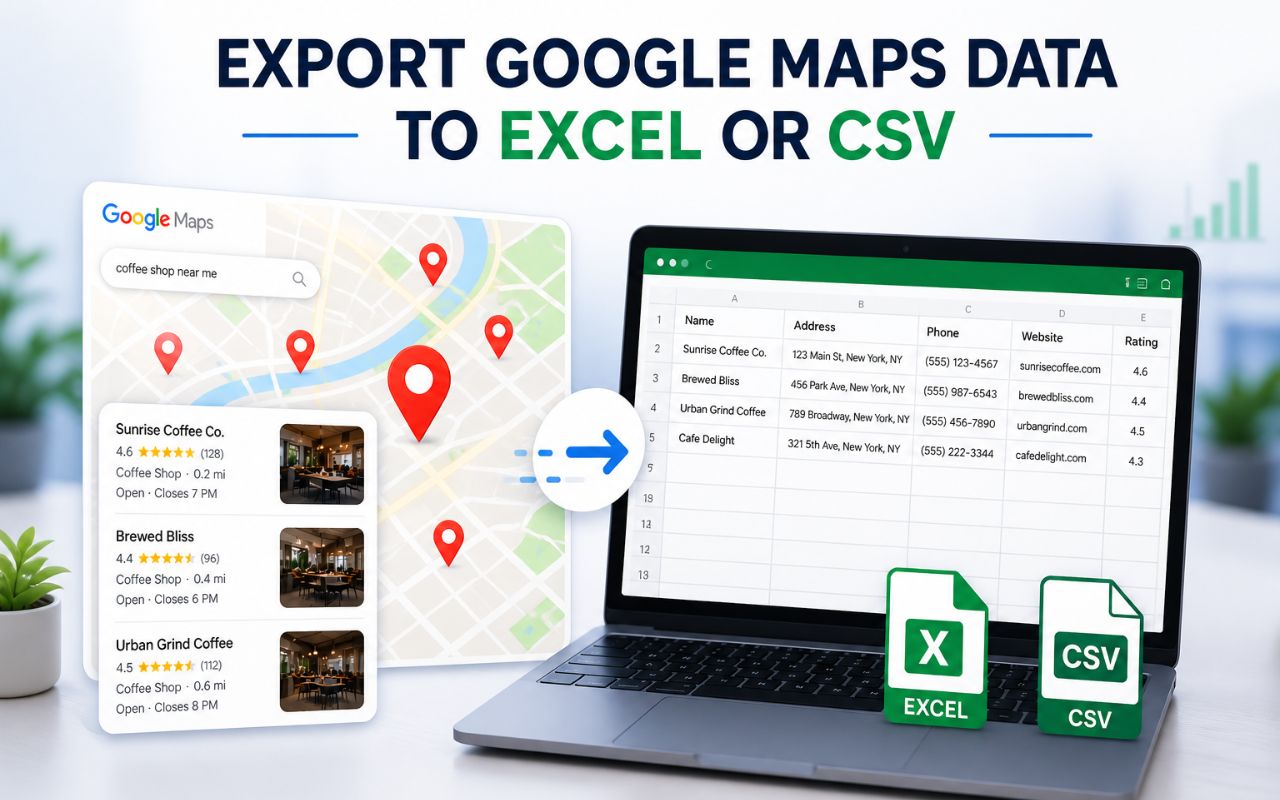
To export google maps data to excel means using a piece of software to "read" the public information on a map search and save it into a structured file like a CSV or an Excel sheet. Instead of seeing pins on a map, you see rows and columns of verified business data.
The process involves a "scraper" or "extractor." These tools look at the business name, the verified status, the rating, the phone number, and the website URL. Advanced tools go a step further by visiting the business website in the background to find official contact emails and social media profiles. The result is a download google maps business list that is ready for cold calling or email outreach.
Why Map Data is Vital for Business Growth
For anyone involved in local or B2B sales, map data is a goldmine. Having the ability to move that data into a spreadsheet changes how you find clients.
Local Marketing Agencies
If you run an agency, you need to find specific niches in specific cities. Perhaps you want to reach every roofing contractor in Florida or every law firm in London. Being able to export google maps data to excel allows you to build a massive list of potential clients in minutes. You can then sort them by rating to find businesses that might need help with their online reputation.
Real Estate Teams and Brokers
Real estate professionals often need to find local businesses, property management offices, or local brokers. By using a Realtor lead generation tool alongside map data, you can build a localized network faster than your competitors.
Recruiters and B2B Sales
Recruiters use maps to find companies in a specific industry that might be hiring. B2B sales teams use it to find local offices that need their services. When you can turn a map search into a google maps to csv file, you remove the friction of lead research.
Best Tools to Export Google Maps Data to Excel
To get the best results in 2026, you need a tool that is fast, accurate, and easy to use.
1. LeadStal Google Maps Scraper
This is a specialized Google Maps lead generator that functions as a browser extension. It is designed to handle high-speed data extraction.
- Speed: It can gather over 2,500 leads per hour.
- Data Accuracy: It pulls names, websites, phone numbers, and social media links.
- Export Formats: It allows for a clean export google maps data to excel or CSV.
2. Bing Maps Scraper
While Google is the leader, some businesses update their data on other platforms first. A Bing Maps lead extractor provides a secondary source of data to ensure you haven't missed any local prospects.
3. Zillow and Realtor Scrapers
For those in the property sector, general map data might not be enough. Using a Zillow lead scraper or a Realtor lead generation tool helps you find agent-specific data and property listings that standard maps don't show.
Step-by-Step Guide: Exporting Google Maps Data
Follow these steps to turn your next map search into a professional lead list.
Step 1: Install the LeadStal Chrome Extension
Start by getting the Chrome extension for Google Maps scraping. Once it is added to your browser, pin it so it is easy to find.
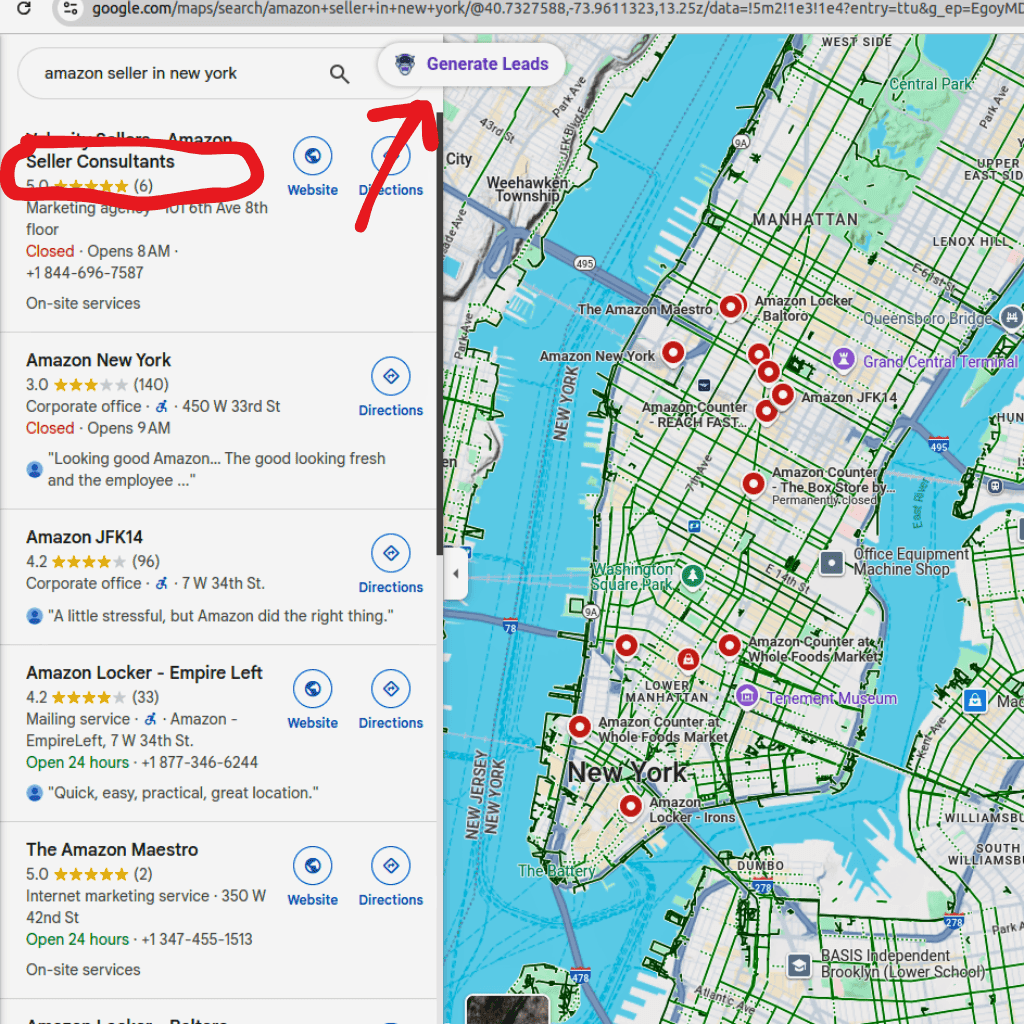
Step 2: Search for Businesses on Google Maps
Go to the Google Maps website. Type in your search term. For example, "Dental Clinics in Miami" or "Auto Repair in Chicago." Let the map load the results.
Step 3: Run the Extraction
Open the LeadStal extension and click "Generate Leads." The software will start scanning every listing that appeared in your search. It collects the business name, address, phone, and website.
Step 4: Review and Export
Once the tool finishes, you will see a list of results. Click the "Export" button. You will have the option to export google maps data to excel or choose the google maps to csv format. Choose the one that works best for your CRM or spreadsheet software.
Step 5: Verify and Clean
Data is only useful if it is accurate. Use an email verification tool on any contact emails you found. This ensures your outreach doesn't bounce and protects your sender reputation.
Practical Tips for Better Map Data
To get the most out of your download google maps business list, use these professional tips.
- Use Specific Keywords: Searching for "businesses" is too broad. Search for specific niches like "Hvac contractors" or "Boutique hotels."
- Sort by Rating: When you have your data in Excel, sort by the rating column. You can target high-rated businesses for partnerships or low-rated businesses for reputation management services.
- Combine Sources: Use a Google Search email scraper to find even more contact info that might not be on the map listing itself.
- Find Specific People: If the map listing only gives you a general office number, use a person email finder to find the decision-maker at that company.
Comparison: CSV vs. Excel for Map Data
Regardless of the format you choose, the goal is to get the data off the map and into a system where you can take action.
Common Mistakes to Avoid
Even with the right tools, some common errors can slow you down.
- Ignoring Data Freshness: Business data changes. A restaurant that was open last year might be closed now. Always check your list every few months.
- Not Using Filters: Don't scrape everything. Use the map's filters to find businesses that are "Open Now" or have a specific rating level.
- Skipping Validation: Sending emails to unverified addresses is a quick way to get your account blocked. Always use an email verification tool.
- Buying Pre-Made Lists: Often, people buy a download google maps business list from a third party. These are usually outdated. It is much better to scrape your own data so you know it is fresh.
- Forgetting Local Competitors: Don't just search your own city. Search neighboring towns to expand your reach.
FAQs
1. Is it legal to export google maps data to excel?
Scraping publicly available information for business purposes is generally allowed. However, you must comply with privacy laws like GDPR or CCPA when using that data for your outreach.
2. Can I export Google Maps to Excel for free?
Many tools, including LeadStal, offer a free version or a trial period. This allows you to test the tool and perform a download google maps business list for a limited number of leads.
3. What is the difference between CSV and Excel?
A CSV (Comma Separated Values) file is a simple text file that works with any software. An Excel file is a more complex format that allows for better data organization and formulas.
4. How many leads can I export in an hour?
Using a professional Google Maps lead generator, you can gather and export over 2,500 leads per hour.
5. Does Google Maps provide an export button?
No. Google does not have a built-in way to export search results. You must use a third-party tool like a Chrome extension to get the data into a spreadsheet.
6. Can I find emails on Google Maps?
Map listings usually show phone numbers. To get emails, a scraper visits the business website and finds the contact addresses listed there.
7. Do I need to be a developer to scrape data?
No. Modern tools are built for everyone. If you can use a browser, you can use a google maps lead extractor.
8. Can I export social media links from maps?
Yes. Professional scrapers can find Facebook, Instagram, and LinkedIn links associated with the business listings.
9. How do I import the data into my CRM?
Most CRM tools have an "Import" button. You simply upload your google maps to csv file, and the data will be organized into your contact lists.
10. What information is included in the export?
Typical exports include the business name, address, phone number, website, rating, number of reviews, and verified status.
Turning Data into Sales
Having a massive list in an Excel sheet is just the beginning. The real value comes from how you use that data. Once you export google maps data to excel, you should organize your prospects by their needs.
For example, if you find businesses with very few reviews, you can offer them reputation management. If they have an outdated website, you can offer web design services. Using cold email templates can help you reach out to these businesses with a professional message that gets a response.
By moving from manual research to automated extraction, you free up your time to focus on building actual connections. Lead generation is a numbers game, but it only works if you have the right numbers in your spreadsheet.
Stop clicking and start scraping. The data you need to grow your business is already on the map—you just need to move it to your Excel sheet.
Put this into action, for free
Find verified leads from Google Maps, Instagram and 30+ sources with LeadStal's free tools.
Start finding leads freeComments (3)
 Priya Nair· 2 days ago
This is exactly what I needed, pulled 300 leads in my niche the same afternoon. The export to CSV worked flawlessly.