How to Find Local Business Emails Using Google Maps (2026 Guide)
Learn how to find local business emails using Google Maps with no-code tools. Step-by-step guide with tips, tools, and common mistakes to avoid.
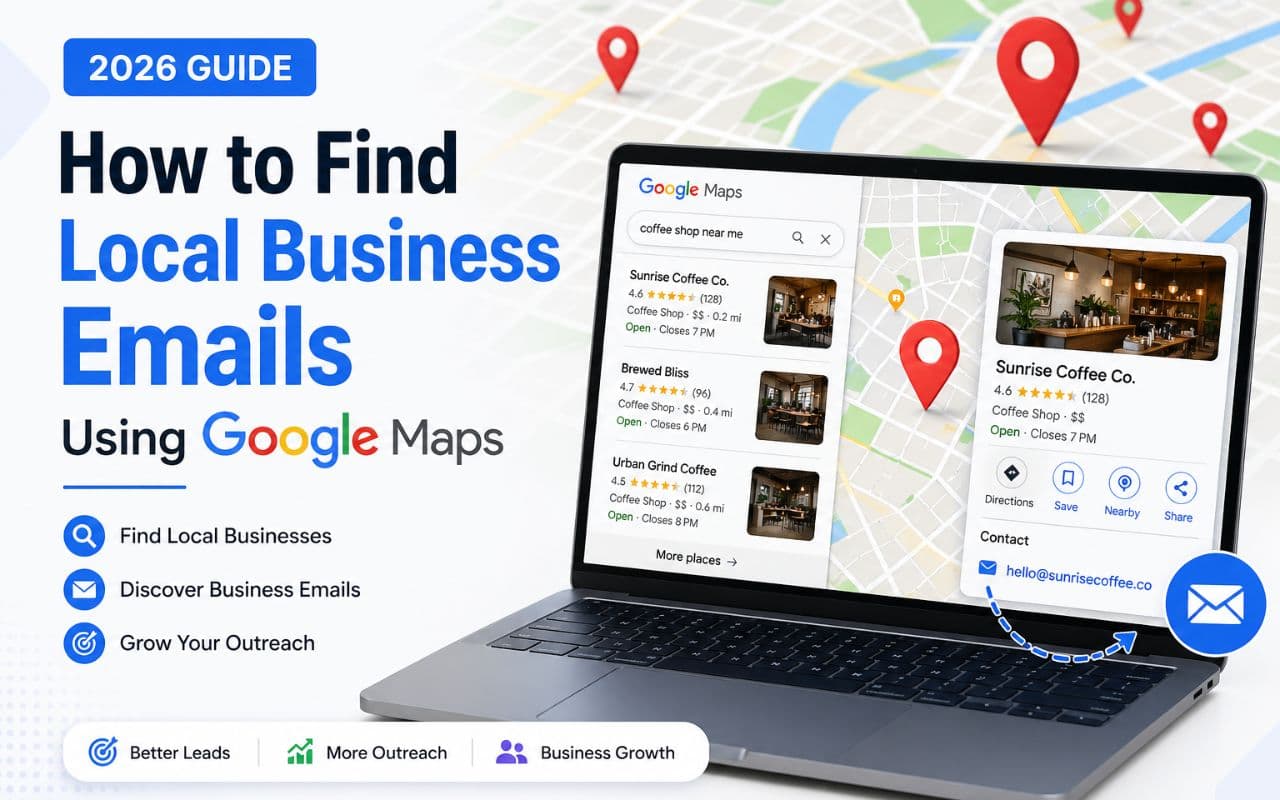
You know the businesses are there. Open Google Maps, search for any category in any city, and you will see dozens — sometimes hundreds — of local businesses with names, phone numbers, addresses, and websites listed right on the page.
But here is the frustrating part: most of those listings do not show an email address directly. And even when they do, copying them one by one into a spreadsheet is slow, tedious, and impossible to scale.
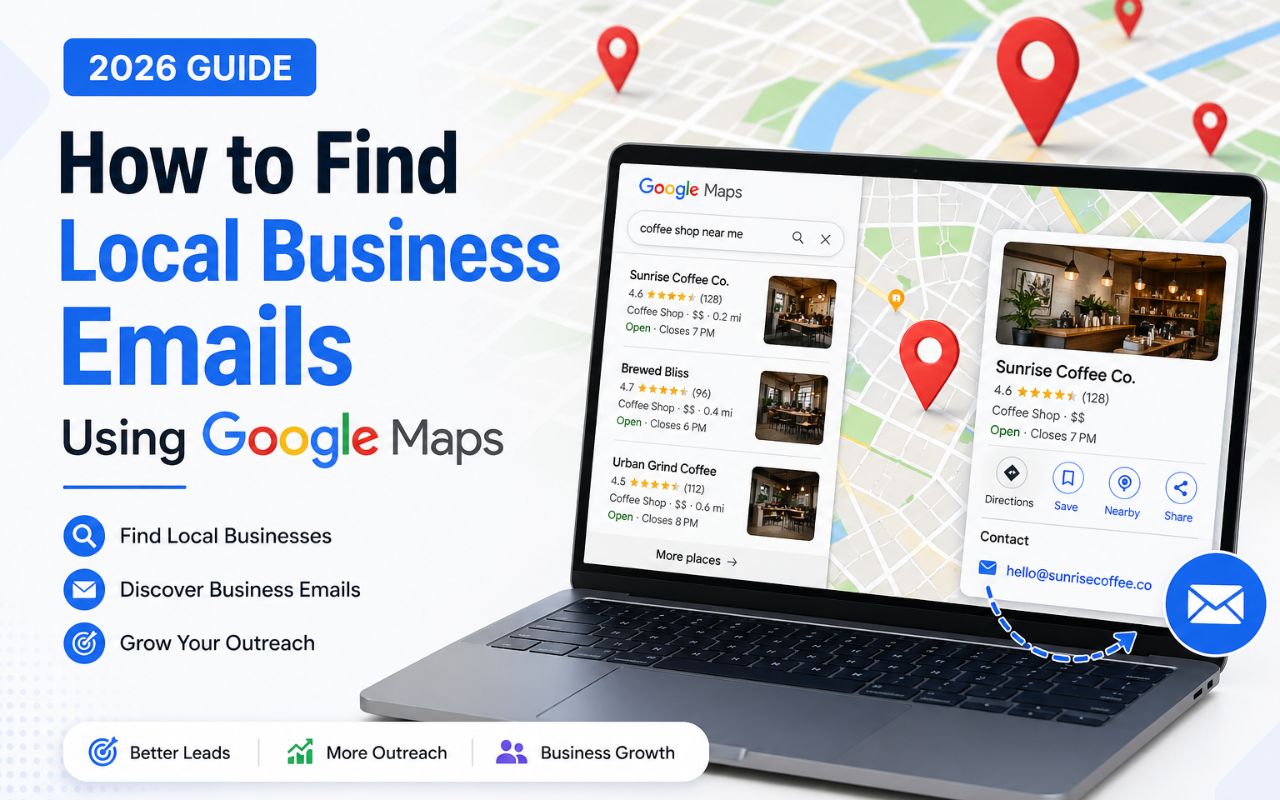
If your work depends on cold email outreach — whether you run a lead generation agency, sell B2B services, or manage marketing campaigns for local businesses — you need a faster way to find local business emails using Google Maps.
This guide covers the full process. You will learn what it means to extract business emails from Google Maps, why it matters for outreach, which tools and methods work best, how to do it step by step, and how to avoid the mistakes that lead to wasted time and poor data quality.
What Does It Mean to Find Local Business Emails from Google Maps?
Finding local business emails from Google Maps involves two connected steps:
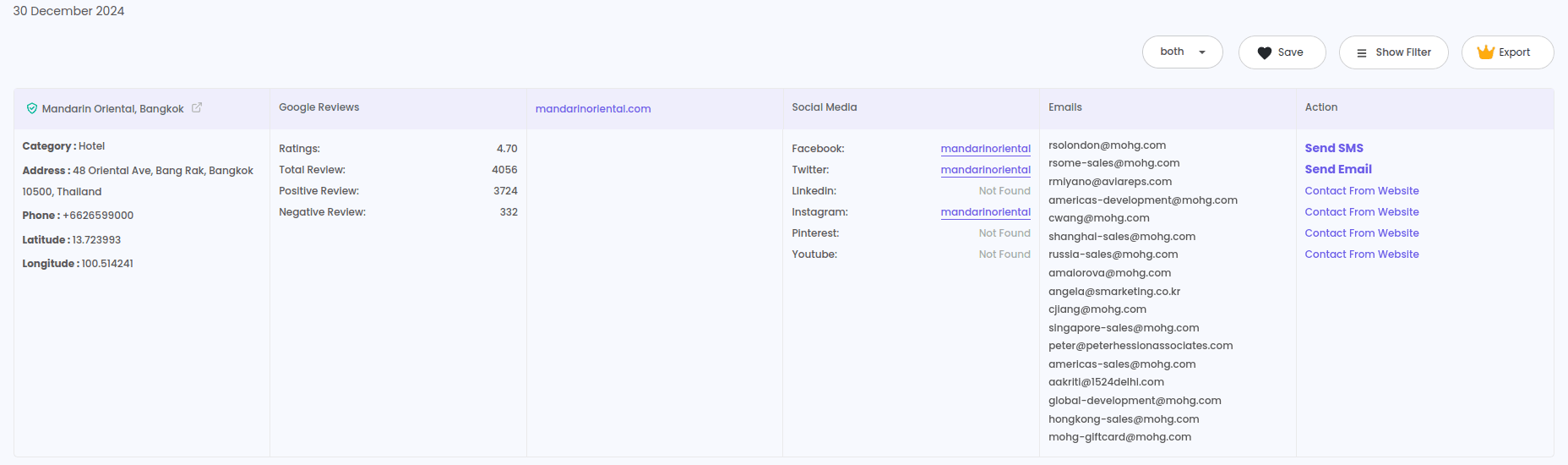
Step one: Extract business listing data from Google Maps search results — names, phone numbers, addresses, websites, categories, ratings, and any email addresses that are directly listed.
Step two: For businesses where no email is visible on the listing, use the website URLs you collected to discover associated email addresses through email finding tools.
The result is a structured spreadsheet with business contact data — including verified email addresses — that you can use for cold email campaigns, CRM imports, or outreach workflows.
This process works for any business category on Google Maps: dentists, law firms, restaurants, gyms, agencies, contractors, retailers, real estate agents, and more.
Why Finding Local Business Emails from Google Maps Matters
Email is still one of the most effective channels for B2B outreach. But the biggest bottleneck is not writing the email — it is finding the right email address in the first place.
Google Maps solves half of this problem by giving you a searchable directory of local businesses with publicly available contact data. The other half is filling in the missing email addresses using the right tools.
Here is why this matters for different types of users:
Small business owners looking for local clients — landscapers, accountants, IT consultants, cleaning companies — can build prospect lists of nearby businesses that might need their services. Google Maps makes it easy to search by location and category.
B2B lead generation agencies can serve their clients by scraping business data from Google Maps and enriching it with verified emails. This creates a repeatable, scalable lead sourcing workflow.
Cold email marketers need accurate email addresses to run campaigns. Scraping Google Maps for business data and then running the domains through an email finder gives them outreach-ready lists much faster than manual research.
Real estate professionals can find local service providers, potential partners, or investor contacts by pulling data from Google Maps — and adding data from sources like Realtor and Zillow for deeper coverage.
Recruiters targeting companies in specific industries and locations can extract business data and use a person email finder to reach specific decision-makers.
Founders doing outbound sales can build their first prospect lists from Google Maps without spending money on expensive lead databases.
In every case, the ability to find local business emails using Google Maps turns a free public directory into a working outreach pipeline.
Best Methods and Tools to Find Local Business Emails from Google Maps
There are three practical approaches, and the best results come from combining them.
Method 1: Scrape Google Maps Listings Directly
A Google Maps scraper extracts all available data from business listings — including email addresses when they are publicly listed. This is the fastest way to get started.
Best tool for this: The LeadStal Google Maps Scraper is a Chrome extension that pulls business names, phone numbers, emails, addresses, websites, categories, ratings, review counts, and social media links from Google Maps search results. Data exports to CSV or Excel.
You can install it from the Chrome Web Store.
Free plan: Up to 50 lead exports. Paid plans support unlimited exports.
Limitation: Not every Google Maps listing includes an email address. Many businesses list only a phone number and website. That is where the next method comes in.
Method 2: Use Email Finder Tools on Collected Domains
After scraping Google Maps, you will have a list of business website URLs. You can run those domains through email finding tools to discover associated email addresses.
Best tools for this:
- Bulk Email Finder — Upload a CSV of domains and get back verified emails for each one. This is the fastest option for large lists.
- Single Email Finder — Look up one domain at a time. Good for quick, one-off searches.
- Person Email Finder — Search by first name, last name, and company domain to find a specific person's email. Best when you know who you want to reach.
- Website email extractor — Scans websites for visible email addresses. Useful as a supplemental tool.
Method 3: Search for Emails Through Google Search Results
Some business emails appear in Google search results — on contact pages, directory listings, press releases, or social profiles — even if they are not on the Google Maps listing itself.
Best tool for this: The Google Search email scraper extracts emails and contact information from Google search results and linked web pages. It works well as a secondary source after scraping Google Maps.
Methods Comparison: Finding Local Business Emails
The strongest approach is to scrape Google Maps first, then run the collected domains through the Bulk Email Finder, and use the Person Email Finder for high-priority contacts. This gives you the widest email coverage with the least manual effort.
How to Find Local Business Emails Using Google Maps: Step-by-Step
Here is a complete walkthrough using the LeadStal tool ecosystem.
Step 1: Install the Google Maps Scraper
Download the LeadStal Google Maps Scraper from the Chrome Web Store or from the LeadStal website.
Step 2: Search Google Maps for Your Target Category and Location
Open Google Maps in Chrome and enter a specific search.
Good examples:
- "dentists in Seattle WA"
- "law firms in Boston"
- "HVAC companies in Phoenix AZ"
- "marketing agencies in San Diego"
- "gyms in Nashville TN"
Be specific. The more targeted your search, the more relevant your leads.
Step 3: Extract the Business Data
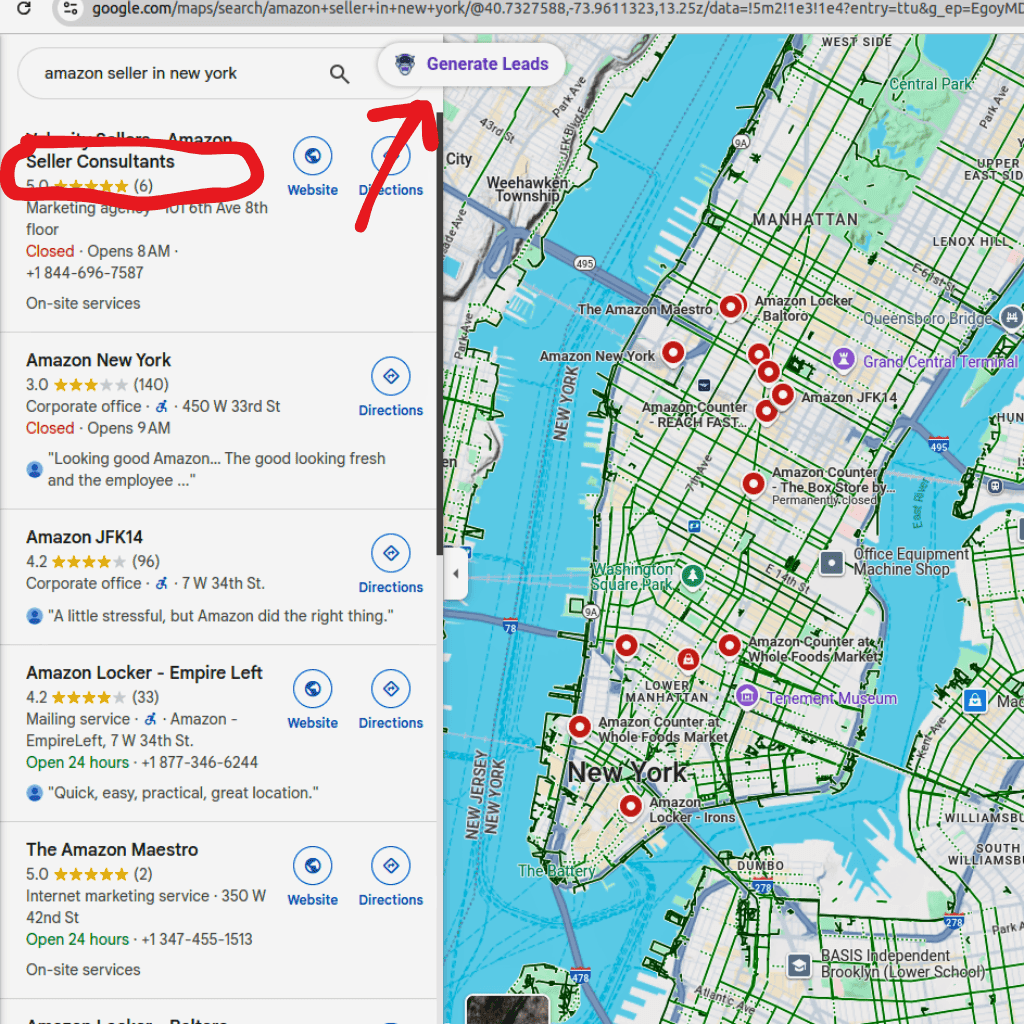
Click the LeadStal extension icon and press "Generate Leads." The tool scans all visible listings and collects available data — names, phones, addresses, websites, emails (when listed), ratings, categories, and more.
Step 4: Export to CSV or Excel
Click export and choose your format. You now have a spreadsheet with all the business data from your search.
Step 5: Identify Listings Without Email Addresses
Open your exported file and filter for rows where the email column is empty. These are the businesses where you need to find the email through other methods.
Step 6: Run Domains Through the Bulk Email Finder
Take the website URLs from your spreadsheet — for the businesses missing emails — and upload them to the Bulk Email Finder. The tool searches each domain and returns verified email addresses where available.
Step 7: Use the Person Email Finder for Priority Contacts
For high-value prospects where you want to reach a specific person — like the business owner or a decision-maker — use the Person Email Finder. Enter the person's first name, last name, and company domain to find their direct email.
Step 8: Scan Websites for Visible Emails
For any remaining gaps, use the website email extractor to scan business websites for publicly visible email addresses on contact pages, about pages, or footers.
Step 9: Validate Every Email
Before sending any outreach, run your entire list through the LeadStal Email Validator. This removes invalid, risky, and dead addresses — reducing bounces and protecting your sender reputation.
Step 10: Start Your Outreach
Import your validated list into your cold email platform. If you use LeadStal's mail.leadstal.com, you can create campaigns, manage sender accounts, track replies through Unibox, and monitor performance with built-in analytics.
For email copy ideas, the cold email templates library has 150+ tested examples across categories like cold outreach, follow-ups, and referrals.
Practical Tips for Finding More Local Business Emails
Combine scraping with email finding. Google Maps scraping alone will not give you emails for every business. Plan to use both a scraper and an email finder tool on every list you build. This two-step approach is what separates mediocre lists from outreach-ready ones.
Break cities into smaller areas. Google Maps caps the number of results per search. If you are targeting a large city, split your search into neighborhoods or zip codes. Run "dentists in Brooklyn NY" and "dentists in Queens NY" separately to capture more listings.
Use multiple map sources. Google Maps is the strongest starting point, but Bing Maps sometimes surfaces businesses that Google does not. Running both gives you a wider net.
Filter before you find emails. Not every business on your list is worth the effort of an email lookup. Filter your Google Maps data by rating, review count, or category first — then run email searches only on the strongest prospects.
Always validate. This is the most important step in the entire process. Sending cold emails to unverified addresses causes bounces, spam complaints, and potential domain blacklisting. Run every batch through the Email Validator before launching a single campaign.
Scrape regularly. Business data changes constantly. New businesses open, old ones close, and contact info gets updated. Build monthly scraping into your workflow to keep your lists fresh.
Segment your list for better results. Group businesses by industry, location, size, or rating tier before writing your outreach copy. Segmented campaigns with targeted messaging get much higher open and reply rates than one-size-fits-all blasts.
Common Mistakes When Finding Local Business Emails from Google Maps
1. Only relying on emails from the Google Maps listing. Many listings do not include an email. If you skip the email finding step, your list will have significant gaps. Always follow up with a bulk email finder.
2. Searching too broadly. "Businesses in Florida" gives you a useless, unfocused list. Target a specific industry and city for each search.
3. Skipping email validation. Sending to unverified emails damages your domain reputation, increases bounce rates, and can get your sending domain blacklisted. Validate every address before sending.
4. Not deduplicating. Running multiple searches in overlapping areas produces duplicate entries. Clean your list before importing it anywhere.
5. Using only one data source. Google Maps is great, but pairing it with Bing Maps and Google Search results gives you a more complete list.
6. Not enriching with person-level contacts. Generic info@ or contact@ emails get lower response rates. Where possible, use the Person Email Finder to reach the actual owner or decision-maker.
7. Sending the same email to every industry. A dentist and a marketing agency have completely different pain points. Write targeted copy for each segment.
8. Scraping once and never updating. Business data goes stale. Contact info changes, businesses close, and new ones open. Run fresh extractions at least monthly.
Where This Process Fits in a Full Outreach Workflow
Finding emails is one piece of a larger pipeline. Here is how it connects:
Step 1 → Scrape business data from Google Maps. Add more from Bing Maps or Instagram if relevant.
Step 2 → Find missing emails using the Bulk Email Finder, Person Email Finder, or website email extractor.
Step 3 → Validate every email with the Email Validator.
Step 4 → Segment your list by industry, location, or priority.
Step 5 → Write outreach copy using tested cold email templates.
Step 6 → Launch campaigns and track performance.
Step 7 → Manage replies and follow up with interested prospects.
This is the full workflow that LeadStal supports — from data collection through campaign execution.
Frequently Asked Questions
1. How do I find local business emails using Google Maps?
Scrape business listings from Google Maps using a tool like the LeadStal Chrome extension, then run the collected website domains through an email finder tool to discover associated email addresses. Validate all emails before sending outreach.
2. Does Google Maps show email addresses for businesses?
Some business listings include email addresses, but many do not. Most listings show a phone number and website URL. You can use the website URL to find the business email through an email finder tool.
3. What is the best tool to extract emails from Google Maps?
The LeadStal Google Maps Scraper extracts listing data including emails when available. For listings without emails, the Bulk Email Finder discovers contacts from website domains.
4. Do I need coding skills to find business emails from Google Maps?
No. Tools like the LeadStal Chrome extension work with a simple click-and-export process. Email finder tools also have straightforward interfaces with no programming required.
5. How accurate are emails found through Google Maps data?
Emails listed directly on Google Maps profiles are as accurate as the business owner keeps them. Emails found through domain searches depend on the email finder tool's data sources. Always validate before outreach.
6. Can I build a local business email list for free?
LeadStal offers a free plan with up to 50 lead exports from Google Maps. This is enough to test the workflow before upgrading for larger volumes.
7. Should I validate emails before sending cold outreach?
Yes. Sending to invalid emails causes bounces, triggers spam filters, and can get your domain blacklisted. Validation is a required step — not optional.
8. How many business emails can I collect from Google Maps?
Google Maps limits results per search. To collect more, run targeted searches for specific neighborhoods, zip codes, or subcategories. Paid tool plans support unlimited exports.
9. What types of businesses can I find emails for using Google Maps?
Any business category listed on Google Maps — dentists, restaurants, law firms, contractors, gyms, agencies, salons, real estate agents, retailers, and more.
10. How often should I update my local business email list?
Business data changes frequently. Run fresh Google Maps scrapes and email searches every two to four weeks to keep your lists current and your outreach effective.
Start Finding Local Business Emails Today
The contact data you need is already sitting on Google Maps. The only missing piece is the right process to extract it, fill in the gaps, and verify it for outreach.
Start with the LeadStal Google Maps Scraper to pull business data — 50 leads are free. Use the Bulk Email Finder to discover emails from the domains you collect. Validate everything with the Email Validator. And when you are ready to send, launch campaigns through mail.leadstal.com with copy from the templates library.
The businesses are listed. The emails are findable. Now you have the tools and the steps to put it all together.
Put this into action, for free
Find verified leads from Google Maps, Instagram and 30+ sources with LeadStal's free tools.
Start finding leads freeComments (3)
 Priya Nair· 2 days ago
This is exactly what I needed, pulled 300 leads in my niche the same afternoon. The export to CSV worked flawlessly.