How to Scrape Real Estate Agents from Google Maps (2026 Guide)
Learn how to build a local business lead list using Google Maps. Full guide with tools, steps, tips, and mistakes to avoid for better outreach.
Building a lead list is the foundation of every outreach campaign. Without a targeted list of prospects, there is no one to email, no one to call, and no pipeline to fill. The problem is that creating a good list takes time — and doing it manually is one of the slowest, most tedious parts of sales and marketing.
Google Maps changes that equation. It holds one of the largest collections of local business data anywhere — names, addresses, phone numbers, websites, ratings, reviews, and sometimes email addresses — all publicly listed and searchable by location and category.
If you know how to build a local business lead list using Google Maps the right way, you can go from an empty spreadsheet to a working prospect list in under an hour. This guide shows you exactly how to do it — which tools to use, how to set up your process step by step, what to do with the data after you collect it, and how to avoid the mistakes that turn a promising list into wasted effort.
What Is a Local Business Lead List from Google Maps?
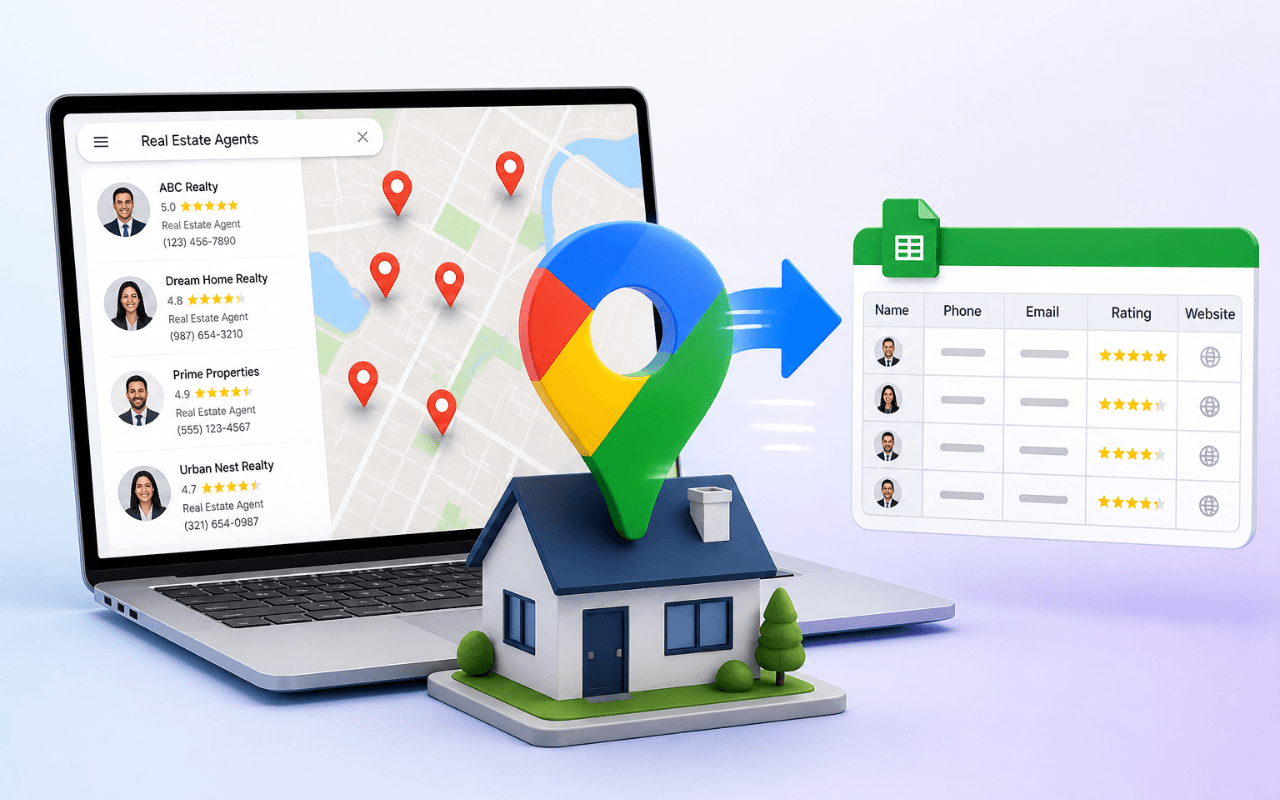
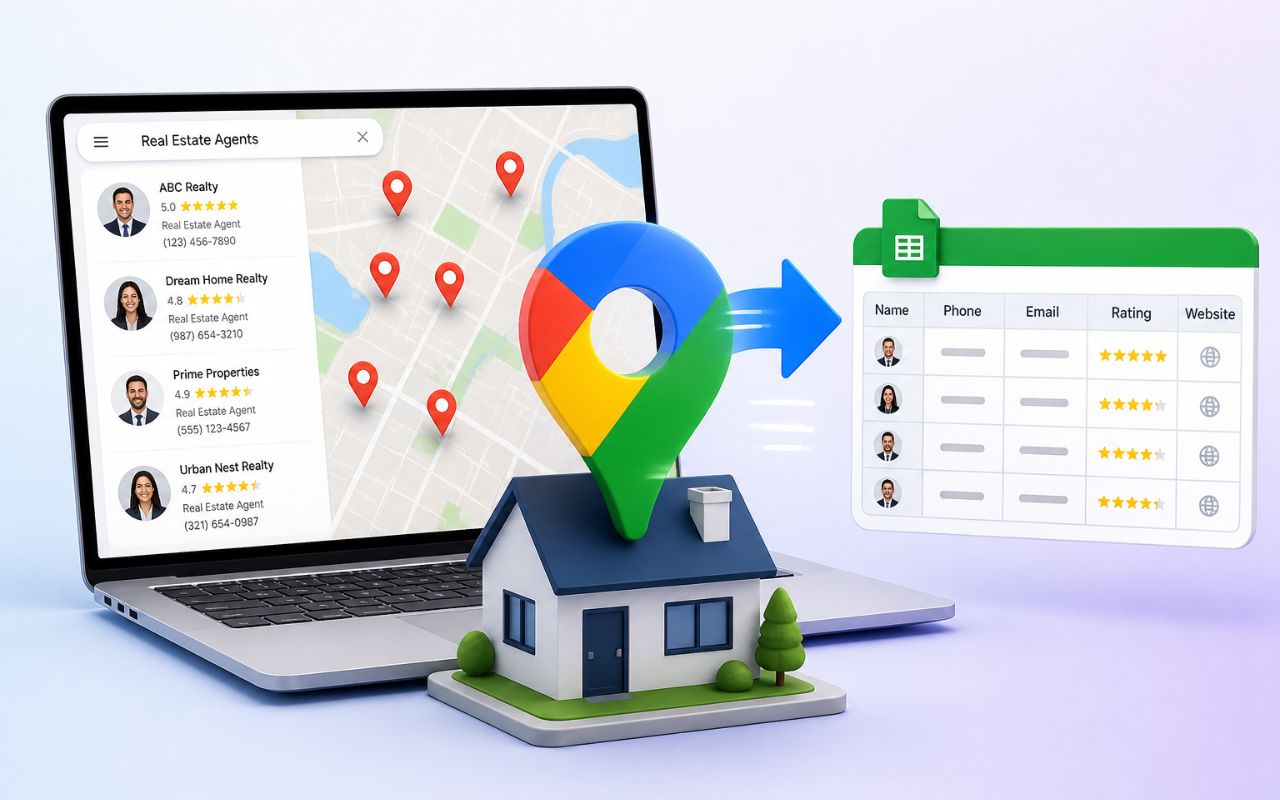
A local business lead list from Google Maps is a structured spreadsheet containing contact and business information extracted from Google Maps search results.
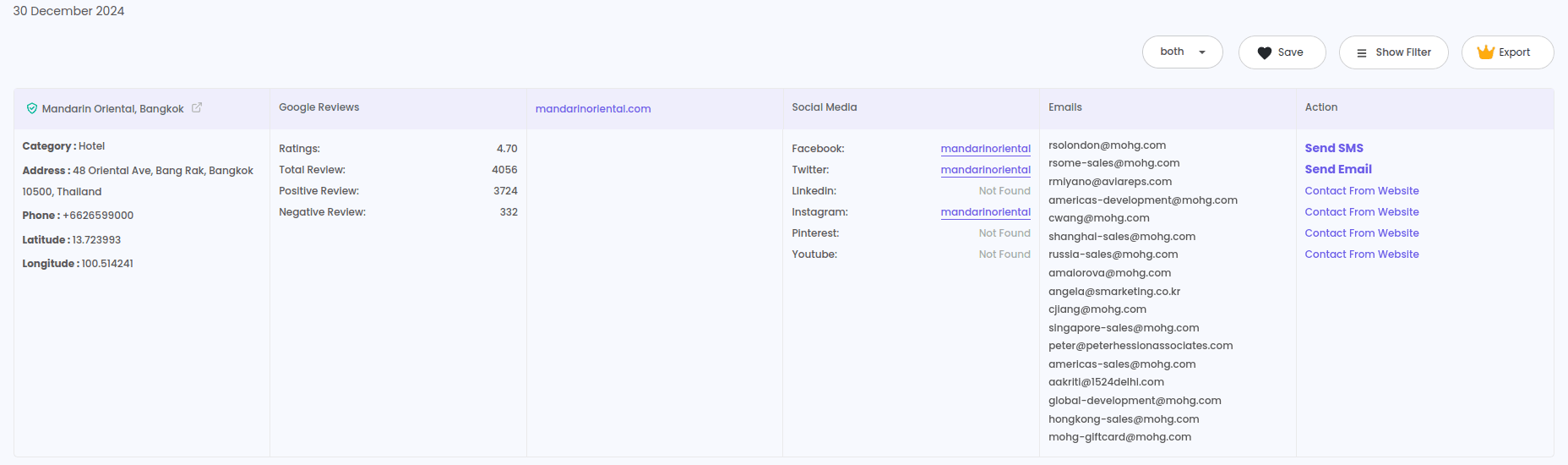
A typical list includes data points like:
- Business name
- Phone number
- Email address (when listed)
- Full address (street, city, state, ZIP)
- Website URL
- Business category
- Rating score
- Review count
- Verified listing status
- Social media links
- GPS coordinates
This data gets exported to CSV or Excel and can be used for cold email campaigns, phone outreach, direct mail, CRM imports, market research, or any other prospecting workflow.
The "local" part means the list is filtered by geography — you are targeting businesses in a specific city, neighborhood, zip code, or region. This makes it highly relevant for anyone doing location-based prospecting or serving local markets.
Why Building a Lead List from Google Maps Matters
Every outreach campaign starts with data. The quality of that data determines whether your emails get opened, your calls get answered, and your pipeline grows. Bad data wastes time and money. Good data produces results.
Here is why Google Maps prospecting matters for different types of users:
Small business owners looking for local clients can build prospect lists of nearby businesses in minutes. A landscaping company can search "office buildings in Raleigh," a cleaning service can search "restaurants in Portland," and an IT consultant can search "law firms in Denver" — all from the same free platform.
Lead generation agencies serving multiple clients across different industries and cities can use Google Maps as a repeatable, scalable source. Scrape one category in one city, export it, move to the next. The process is the same every time.
Cold email marketers need fresh, verified contact data for every campaign. Building a local business lead list from Google Maps — and then enriching it with email finder tools — creates a fast pipeline from data collection to outreach.
Real estate professionals can find service providers, mortgage brokers, contractors, and other industry contacts in target markets. Pair Google Maps data with listings from Realtor and Zillow for broader real estate coverage.
B2B sales teams doing geographic prospecting can build territory-specific lead lists filtered by business category. If your territory is the Southwest, you can scrape Google Maps for target industries across every city in your region.
Recruiters can identify companies in specific industries and locations, then use a person email finder to reach decision-makers at each company.
Founders doing outbound sales can create their first prospect lists without paying for expensive lead databases.
The common thread: Google Maps gives you free, location-targeted, category-filtered business data — and the right tools turn that data into an outreach-ready lead list.
Best Tools to Build a Local Business Lead List from Google Maps
Several tools allow you to extract Google Maps data without coding. Here are the most practical options.
1. LeadStal Google Maps Scraper
The LeadStal Google Maps Scraper is a Chrome extension that extracts business data directly from Google Maps search results.
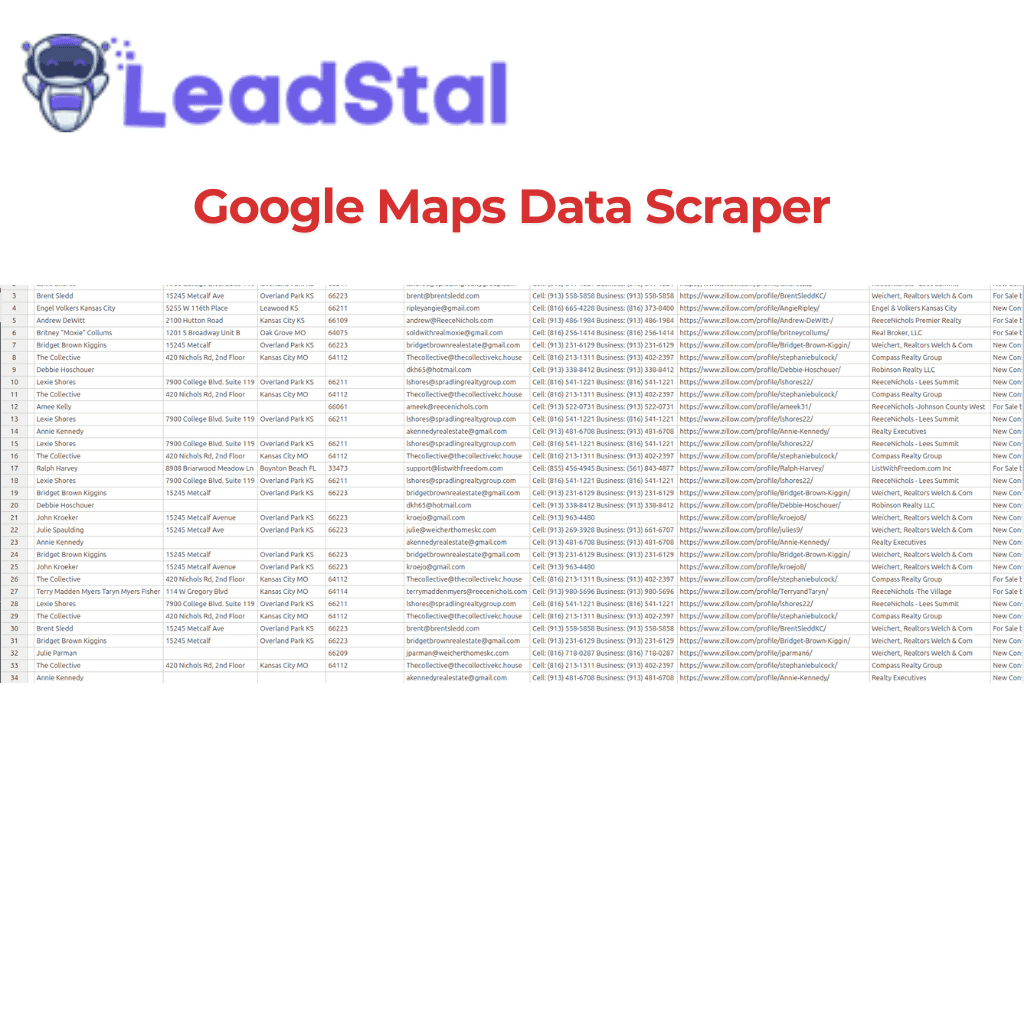
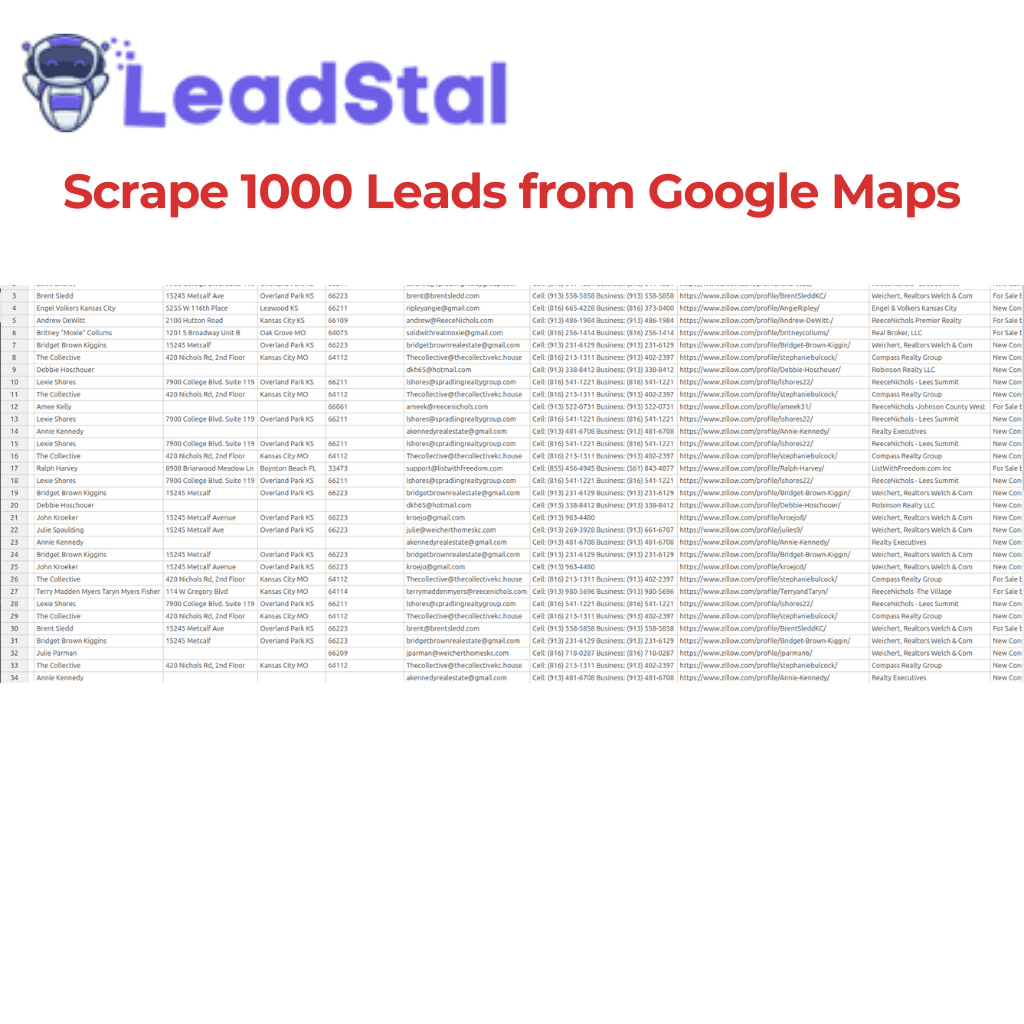
What it extracts: Business name, email, phone, address, website, category, rating, review count, verified status, social media links, and GPS coordinates.
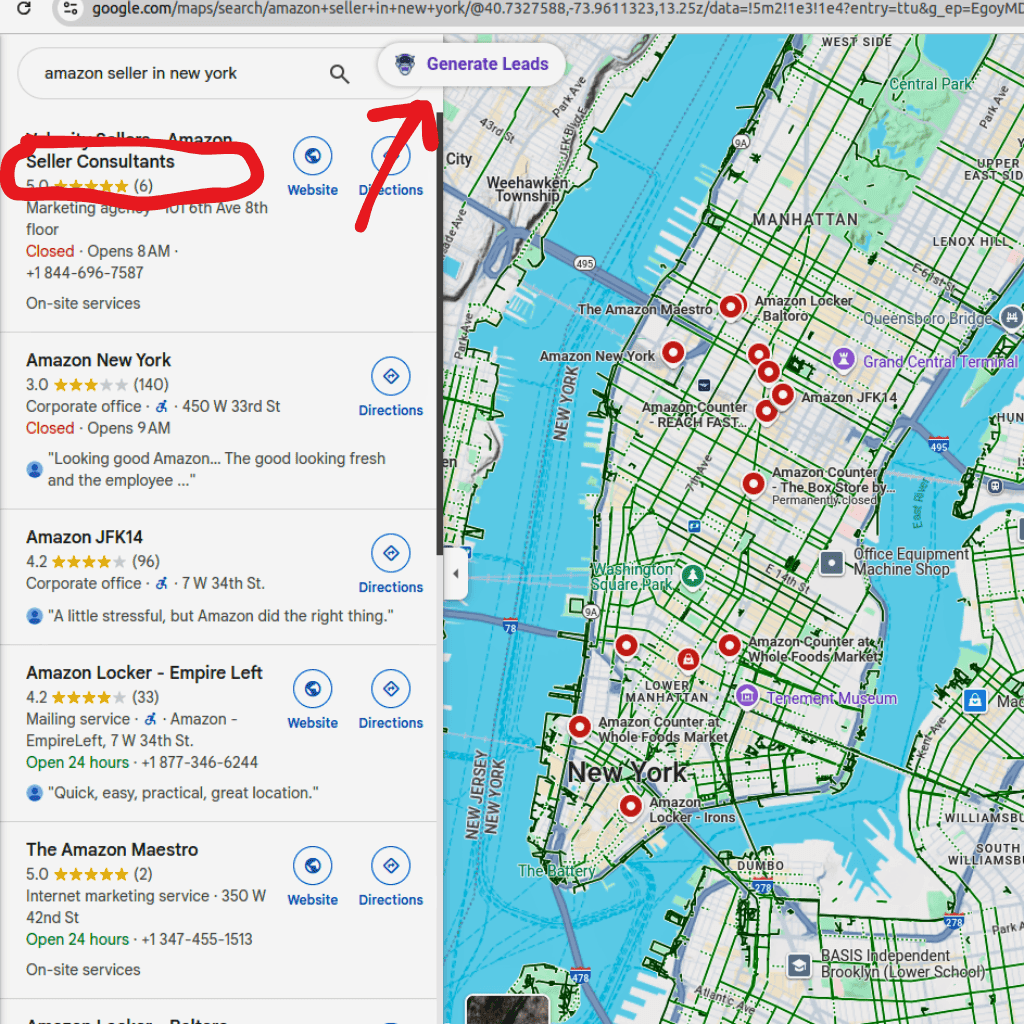
How it works: Search Google Maps for any business type in any location, click "Generate Leads," and export to CSV or Excel.
What makes it different: LeadStal connects data collection to the rest of your workflow. After building your list, you can find missing emails with the Bulk Email Finder, validate contacts with the email verification tool, and launch campaigns through mail.leadstal.com — all in one ecosystem.
Free plan: Up to 50 lead exports. Paid plans support unlimited exports.
Install: Chrome Web Store
Best for: Agencies, sales teams, cold email marketers, small business owners, and anyone building local prospect lists.
2. Outscraper
Outscraper is a web-based platform for extracting Google Maps data through a dashboard interface.
Best for: Users who prefer batch processing and web-based tools over browser extensions.
Limitation: No built-in email validation or outreach features. Costs increase with volume.
3. PhantomBuster
PhantomBuster offers Google Maps scraping as part of its automation platform. It runs in the cloud.
Best for: Teams already using PhantomBuster for other automations.
Limitation: Requires more setup than a Chrome extension. Not as instant for quick searches.
4. Apify
Apify provides a cloud-based Google Maps scraper with scheduling and proxy support.
Best for: High-volume users who need programmatic control.
Limitation: Steeper learning curve. Not beginner-friendly.
Lead List Building: Tool Comparison Table
LeadStal stands out for lead list building because it connects scraping to email finding, validation, and cold outreach — so you can go from an empty list to a live campaign without switching between multiple unconnected tools.
How to Build a Local Business Lead List Using Google Maps: Step-by-Step
Here is the full process using the LeadStal ecosystem.
Step 1: Define Your Target
Before you open Google Maps, decide exactly who you want on your list. Ask yourself:
- What industry or business category am I targeting?
- What city, region, or zip code am I focused on?
- Do I need a specific type of business (e.g., "Italian restaurants" vs. "restaurants")?
- How many leads do I need for this campaign?
Clear targeting leads to cleaner data and better outreach results.
Step 2: Install the Chrome Extension
Get the LeadStal Google Maps Scraper from the Chrome Web Store or the LeadStal website.
Step 3: Search Google Maps
Open Google Maps in Chrome and type a specific query.
Strong examples:
- "plumbers in Austin TX"
- "marketing agencies in San Francisco"
- "dentists in Charlotte NC 28202"
- "gyms in Nashville TN"
- "real estate agents in Scottsdale AZ"
Weak examples to avoid:
- "businesses" (no category, no location)
- "companies in California" (too broad)
Step 4: Extract the Data
Click the LeadStal extension icon and press "Generate Leads." The tool scans visible listings and collects all available data points.
Step 5: Export to CSV or Excel
Click export and choose your format. You now have a raw lead list from Google Maps.
Step 6: Clean the Data
Open your exported file and:
- Remove any rows missing critical fields (no phone, no website)
- Delete obvious duplicates
- Filter out irrelevant results that slipped into your search
Step 7: Find Missing Email Addresses
Many Google Maps listings do not include email addresses. Fill the gaps using:
- Bulk Email Finder — Upload your list of website domains and get back verified emails.
- Person Email Finder — Search by name and company domain for individual contacts.
- Website email extractor — Scan business websites for visible email addresses.
- Google Search email scraper — Find emails from Google search results and linked web pages.
Step 8: Validate Every Email
Run your complete list through the LeadStal Email Validator. This removes invalid, risky, and inactive addresses — protecting your sender reputation and reducing bounces.
Step 9: Segment Your List
Group your leads by:
- Location (city, neighborhood, zip code)
- Business category
- Rating or review count
- Business size (if inferable)
Segmentation allows you to write more targeted outreach copy, which produces better open and reply rates.
Step 10: Launch Outreach
Import your validated, segmented list into your cold email tool. If you use LeadStal's mail.leadstal.com, you can create campaigns, manage multiple sender accounts, track replies through Unibox, and monitor campaign analytics.
For email copy, the cold email templates library has 150+ tested examples across categories like cold outreach, follow-ups, and referrals.
Practical Tips for Building Better Lead Lists
Start with one category and one city. Do not try to build a massive multi-city, multi-industry list in your first attempt. Start small, test your process, refine your approach, and then scale.
Break large cities into zones. Google Maps limits the number of results per search. If you are targeting a metro like Los Angeles, split your searches by neighborhood — Santa Monica, Downtown LA, Pasadena, Burbank — to capture more listings.
Use multiple data sources. Google Maps is the strongest starting point, but Bing Maps sometimes surfaces businesses that Google does not. For social-media-active businesses, the Instagram lead scraper adds another data layer.
Prioritize quality over quantity. A list of 200 verified, well-targeted contacts will outperform a list of 2,000 unverified, random businesses. Filter by rating, review count, and category before exporting.
Always validate before outreach. This is the single most important step. Sending to unverified email addresses damages your sender reputation, causes bounces, and can lead to domain blacklisting.
Build scraping into your routine. Business data changes constantly. New businesses open, old ones close, and contact info gets updated. Run fresh scrapes every two to four weeks to keep your pipeline stocked with current data.
Match your export format to your tools. If your CRM accepts CSV, export CSV. If you filter in Excel first, export Excel. This saves cleanup time downstream.
Keep notes on what works. Track which search queries, cities, and categories produce the best outreach results. Over time, this data helps you build better lists faster.
Common Mistakes When Building Lead Lists from Google Maps
1. No clear targeting. Scraping "businesses in New York" produces a massive, useless list. Define your industry, location, and ideal customer before you start.
2. Skipping the email finding step. Google Maps only shows emails for a fraction of listings. If you skip the email enrichment step, your list will have major gaps. Use the Bulk Email Finder to fill them.
3. Not validating emails. Sending cold emails to unverified addresses causes bounces, triggers spam filters, and risks blacklisting your domain.
4. Ignoring duplicates. Running multiple searches in overlapping areas produces duplicate entries. Deduplicate before importing into any outreach tool.
5. Building once and never refreshing. Business data goes stale fast. Leads that were accurate three months ago may not be accurate today. Refresh your lists regularly.
6. Using only one data source. Google Maps is excellent, but cross-referencing with Bing Maps and Google Search results gives you a broader and more complete list.
7. No segmentation before outreach. Sending the same email to a dentist, a gym, and a law firm produces poor results. Segment by industry and customize your messaging.
8. Exporting everything without filtering. More data is not always better. Filter out low-quality listings (low ratings, no website, unverified profiles) before exporting.
How Lead List Building Fits a Full Outreach Workflow
Building the list is step one. Here is how it connects to a complete outreach pipeline:
Step 1 → Build your list from Google Maps. Add contacts from Bing Maps, Instagram, or industry-specific tools like the Realtor scraper.
Step 2 → Find missing emails using the Bulk Email Finder or Person Email Finder.
Step 3 → Validate every email with the Email Validator.
Step 4 → Segment by location, industry, or priority.
Step 5 → Write outreach copy using cold email templates as a starting point.
Step 6 → Launch campaigns and track performance.
Step 7 → Manage replies and follow up with interested prospects.
This is the workflow that LeadStal supports from data collection through campaign execution.
Frequently Asked Questions
1. How do I build a local business lead list using Google Maps?
Search for a business category in a specific location on Google Maps, use a scraping tool to extract the listing data, find missing email addresses with an email finder, validate all contacts, and export the list to CSV or Excel.
2. What data can I collect from Google Maps for my lead list?
You can typically collect business names, phone numbers, email addresses (when listed), full addresses, website URLs, categories, ratings, review counts, verified status, social media links, and GPS coordinates.
3. Do I need coding skills to build a lead list from Google Maps?
No. Chrome extension tools like the LeadStal Google Maps Scraper work with a few clicks — no programming, scripts, or API setup required.
4. How do I get email addresses for businesses that do not list them on Google Maps?
Use the website URLs from your Google Maps scrape and run them through a bulk email finder to discover associated email addresses. For specific contacts, use the person email finder.
5. Is it legal to collect business data from Google Maps?
Collecting publicly visible business information is a widely used industry practice. Always comply with data protection and email marketing laws in your region when using the data for outreach.
6. What is the best free tool for building a lead list from Google Maps?
LeadStal offers a free plan with up to 50 lead exports from Google Maps. This is a practical starting point for testing the tool and the process.
7. How many leads can I collect from a single Google Maps search?
Google Maps limits results per search query. To collect more leads, break your target area into smaller zones (neighborhoods, zip codes) and run separate searches for each.
8. Should I validate emails before cold emailing?
Yes. Sending to invalid addresses causes bounces, harms sender reputation, and can lead to domain blacklisting. Validate every email before launching any campaign.
9. How often should I refresh my local business lead list?
Every two to four weeks. Business data changes regularly — new businesses open, old ones close, and contact details get updated.
10. Can I build a lead list for any business category using Google Maps?
Yes. Any category listed on Google Maps can be scraped — dentists, law firms, restaurants, contractors, salons, agencies, retailers, gyms, real estate agents, and more.
Start Building Your Lead List Today
A well-built local business lead list is the starting point for every successful outreach campaign. Google Maps gives you the raw data — names, phones, addresses, websites, ratings. The right tools turn that data into verified, segmented, outreach-ready contact lists.
Start with the LeadStal Google Maps Scraper — 50 leads are free. Fill in missing emails with the Bulk Email Finder. Verify everything with the Email Validator. And when your list is ready, launch campaigns through mail.leadstal.com using copy from the templates library.
The businesses are listed. The data is public. Now you have the process and the tools to turn it into a working pipeline.
Put this into action, for free
Find verified leads from Google Maps, Instagram and 30+ sources with LeadStal's free tools.
Start finding leads freeComments (3)
 Priya Nair· 2 days ago
This is exactly what I needed, pulled 300 leads in my niche the same afternoon. The export to CSV worked flawlessly.