Google Maps Business Data Extractor: Complete Guide 2026
Learn how to use a Google Maps business data extractor to collect leads, emails, and contact info fast. Full 2026 guide with tools, steps, and tips.
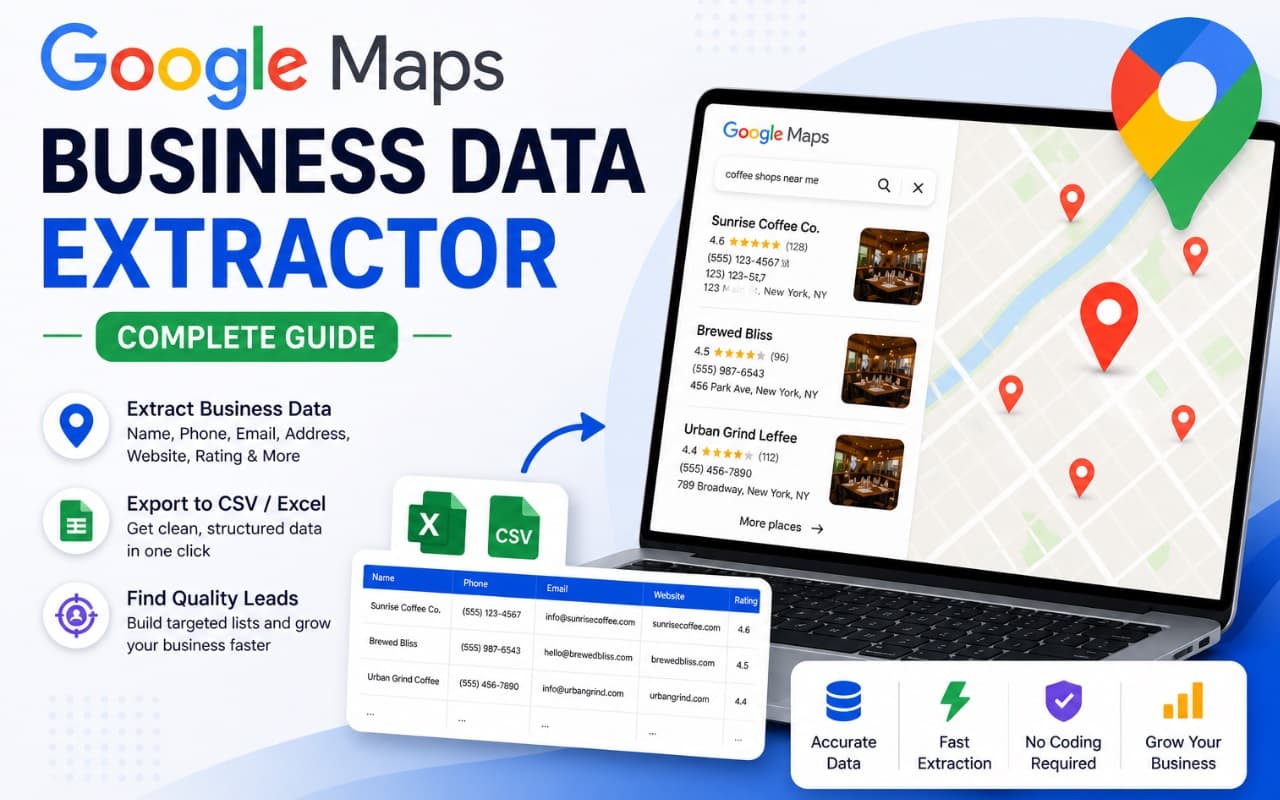
Every business listed on Google Maps comes with a set of publicly visible data — a name, phone number, address, website, category, reviews, and sometimes an email. For anyone in sales, marketing, recruiting, or lead generation, that data is a direct shortcut to building prospect lists.
The problem is that collecting it manually takes forever. You open a listing, copy the details, paste them into a spreadsheet, and repeat. Ten leads in, you are already tired. A hundred leads in, and you have burned half your day on data entry instead of actual outreach.
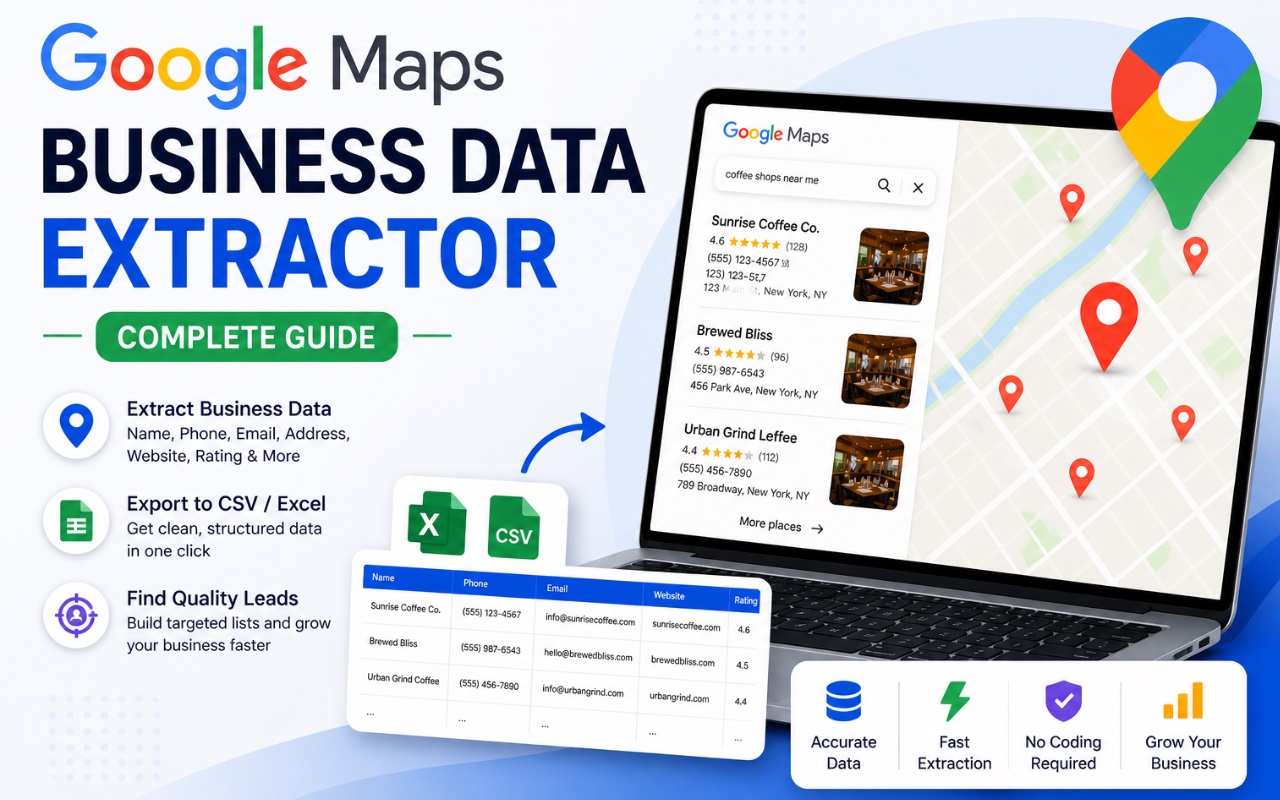
A Google Maps business data extractor solves this by automating the entire collection process. Instead of copy-pasting, you run a tool that pulls structured business information from Google Maps results and exports it into a ready-to-use format like CSV or Excel.
This guide covers everything you need to know about using a Google Maps business data extractor in 2026 — what it is, why it matters, the best tools available, how to use them step by step, practical tips for better data, common mistakes to avoid, and answers to the most frequently asked questions on this topic.
What Is a Google Maps Business Data Extractor?
A Google Maps business data extractor is a tool that automatically collects business listing information from Google Maps and organizes it into a structured spreadsheet format.
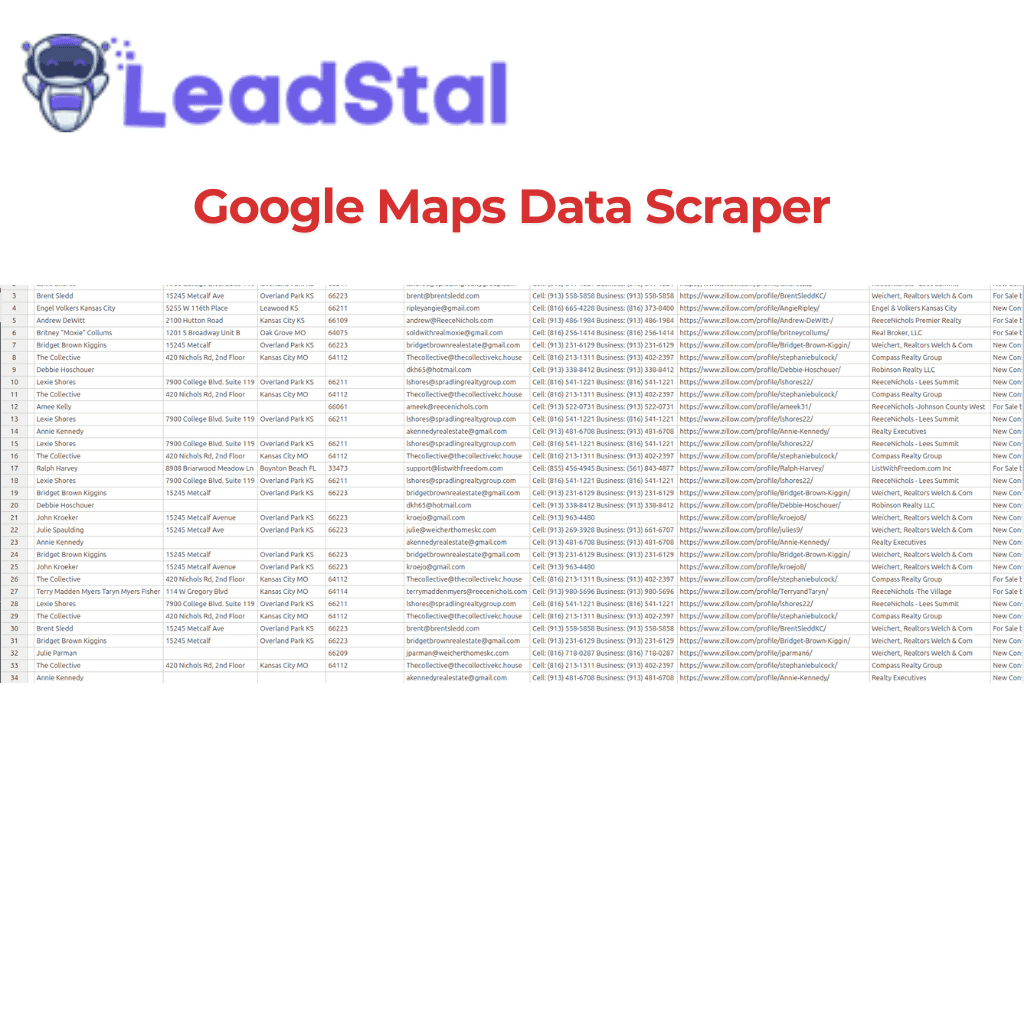
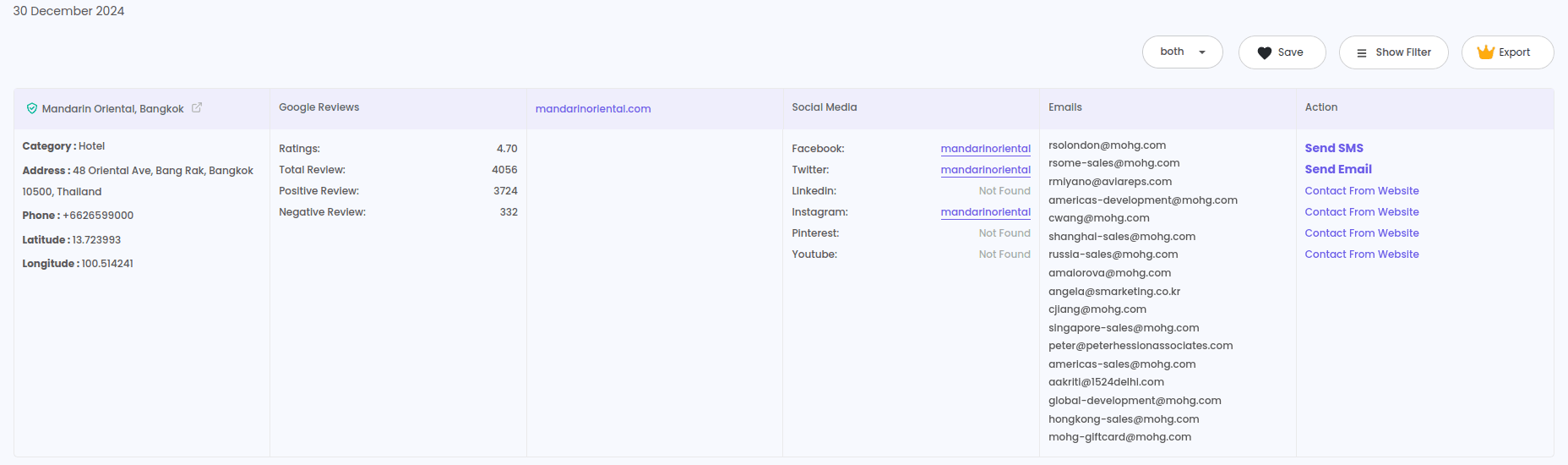
Instead of visiting each listing individually, the tool scans search results and pulls available data points such as:
- Business name
- Phone number
- Email address
- Physical address (street, city, state, ZIP code)
- Website URL
- Business category
- Rating score
- Total review count
- Verified status
- Social media links
- Geographic coordinates (latitude and longitude)
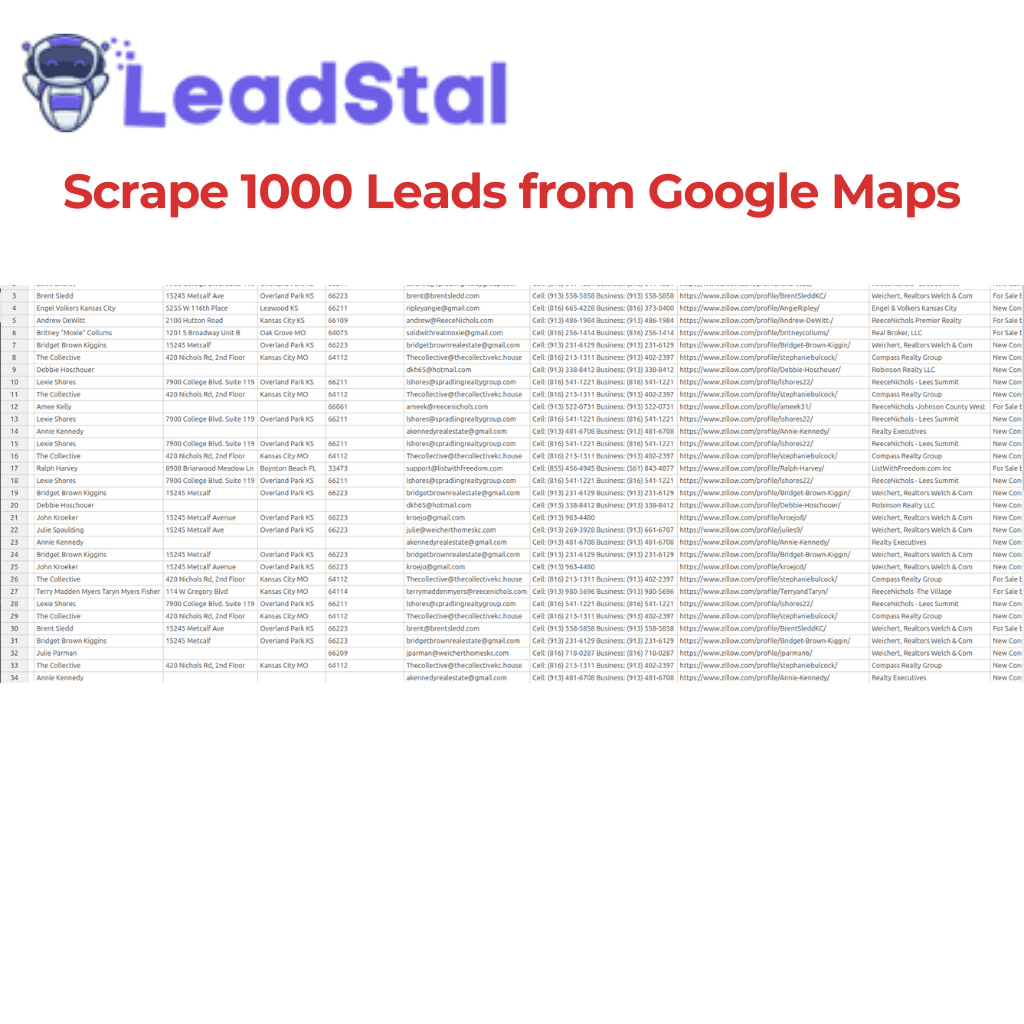
The extracted data gets exported to CSV or Excel, making it ready for CRM imports, cold outreach, market analysis, or lead list building.
These tools typically work as browser extensions, web-based platforms, or desktop applications — and many of them require zero coding skills.
Why Extracting Business Data from Google Maps Matters
Google Maps holds one of the largest collections of local and regional business information available anywhere. Millions of businesses maintain profiles with up-to-date contact details, making it a powerful source for anyone who needs prospect data.
Here is why it matters for different types of users:
Small business owners can identify potential clients, partners, or competitors in their local area without paying for expensive lead databases or third-party data providers.
B2B sales and prospecting teams can build geo-targeted lead lists by industry, city, or neighborhood — and do it in minutes rather than days of manual research.
Cold email marketers need verified contact data to run effective campaigns. Extracting business data from Google Maps and pairing it with tools like an email validator gives them cleaner lists with lower bounce rates.
Local lead generation agencies can serve multiple clients across different industries by scraping targeted business categories in any location. This makes service delivery faster and more scalable.
Real estate professionals can locate service providers, mortgage brokers, property managers, and related businesses in target markets. Pair Google Maps data with tools like the Realtor lead generation tool or Zillow lead scraper for even more real estate contacts.
Recruiters can find companies in specific sectors and locations, then use a person email finder to reach hiring managers or founders directly.
Founders doing outbound sales can build their first prospect lists from Google Maps data without spending money on premium databases.
The bottom line: if your revenue depends on reaching other businesses, Google Maps data gives you a direct, low-cost path to those contacts.
Best Google Maps Business Data Extraction Tools in 2026
Several tools exist for extracting business data from Google Maps without writing code. Here are the most practical options, with a focus on what each one does well.
1. LeadStal Google Maps Scraper
The LeadStal Google Maps Scraper is a Chrome extension designed for fast, no-code business data extraction from Google Maps.
What it extracts: Business name, email, phone, physical address, website URL, category, rating, review count, social media links, verified status, and geographic coordinates.
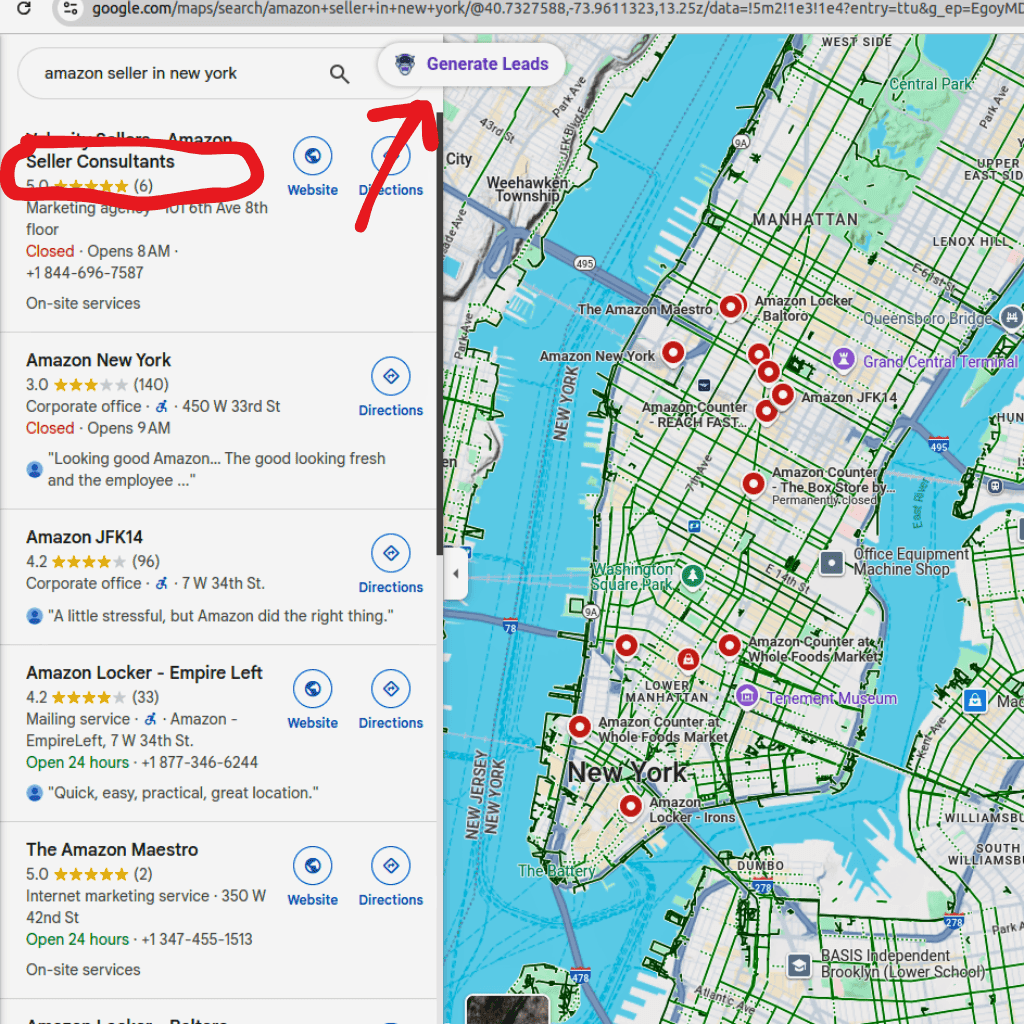
How it works: Open Google Maps in Chrome, search for a business type or location, click "Generate Leads," and export the results to CSV or Excel.
What sets it apart: LeadStal is not just a scraper. It connects directly to an email finding, validation, and cold outreach ecosystem. After you extract your leads, you can verify emails with the email verification tool, find missing contacts with the Bulk Email Finder, and run campaigns through mail.leadstal.com — all from one connected platform.
Free plan: Up to 50 lead exports at no cost. Paid plans support unlimited exports and advanced features.
Install it here: Chrome Web Store
Best for: Sales teams, marketing agencies, local lead generation companies, real estate professionals, and solo founders who want a simple tool that fits into a bigger outreach workflow.
2. Outscraper
Outscraper is a web-based platform that extracts Google Maps data through a dashboard interface. Users enter their search parameters and receive results in spreadsheet format.
Best for: Users who prefer a web app over browser extensions and need batch processing.
Limitation: Costs can add up quickly at higher volumes. No built-in email outreach or validation features.
3. PhantomBuster
PhantomBuster offers a Google Maps extraction module as part of its larger automation suite. It runs in the cloud, so you do not need to keep your browser open during scraping.
Best for: Teams already using PhantomBuster for LinkedIn or other platform automation.
Limitation: Requires more setup than a simple Chrome extension. The interface takes time to learn for new users.
4. Apify
Apify provides a Google Maps scraper "actor" that runs on its cloud infrastructure. It supports scheduling, proxy rotation, and larger data pulls.
Best for: Users who need high-volume cloud-based extraction with advanced configuration options.
Limitation: The learning curve is steeper than browser-based tools. Not ideal for non-technical beginners.
5. MapLeadScraper
MapLeadScraper is a simpler desktop application for pulling Google Maps business data. It focuses on ease of use with minimal setup.
Best for: Users who want a standalone desktop tool without browser dependencies.
Limitation: Fewer integrations with other lead generation or outreach tools.
Google Maps Business Data Extractor: Tool Comparison Table
The main advantage of LeadStal over standalone scrapers is that it connects your data collection directly to email discovery, validation, and campaign sending. Most other tools stop at extraction and leave you to handle the rest with separate software.
How to Extract Business Data from Google Maps: Step-by-Step
This walkthrough uses the LeadStal Chrome extension. The whole process takes about five to ten minutes.
Step 1: Install the Extension
Get the LeadStal Google Maps Scraper from the Chrome Web Store or download the extension package from the LeadStal website.
If using the manual install method: extract the ZIP file, open chrome://extensions in your browser, turn on Developer Mode, click "Load unpacked," and select the extracted folder.
Step 2: Open Google Maps
Go to Google Maps in Chrome.
Step 3: Run a Targeted Search
Type in a specific business type and location. The more specific your query, the better your results will be.
Good search examples:
- "dentists in Dallas TX"
- "real estate agencies in Atlanta"
- "marketing agencies in San Francisco"
- "gyms in Phoenix AZ"
- "HVAC contractors in Charlotte NC"
Avoid vague searches like "businesses in California" — they return messy, unfocused results.
Step 4: Start the Extraction
Click the LeadStal extension icon and press "Generate Leads." The tool begins scanning visible listings and collecting data from each one.
Step 5: Let It Run
The extension works through the results automatically. Depending on how many listings are visible, this may take a few minutes.
Step 6: Review the Collected Data
Click "View Result" to preview the extracted information before exporting. Check for completeness and relevance.
Step 7: Export Your Data
Choose CSV or Excel format and download the file. The export is ready for immediate use in your CRM, spreadsheet, or outreach tool.
Step 8: Fill in Missing Emails
Not every Google Maps listing includes an email address. For missing contacts, use the Bulk Email Finder to search for emails based on the website domains you collected. You can also use the Single Email Finder for one-off lookups.
Step 9: Validate Emails Before Sending
Run your full list through the LeadStal Email Validator. This removes invalid, risky, or dead addresses — protecting your sender reputation and reducing bounces.
Step 10: Launch Your Outreach
Import your validated leads into a cold email tool. If you are using the LeadStal ecosystem, mail.leadstal.com lets you create campaigns, manage sender accounts, track opens and replies through Unibox, and monitor results through built-in analytics.
Need copy for your emails? The cold email templates library has 150+ tested examples across categories like cold outreach, follow-ups, referrals, and more.
Practical Tips for Better Google Maps Data Extraction
Getting data is easy. Getting useful data takes a little more thought. Here are tips that make a measurable difference.
Be specific with your search queries. "Restaurants in Brooklyn NY" produces much better results than "restaurants." Target a single city, neighborhood, or zip code per search for cleaner lists.
Break large areas into smaller zones. Google Maps limits how many results it shows per query. If you need leads across an entire metro area, split it into neighborhoods and run separate scrapes for each one. This captures more listings than a single broad search.
Combine Google Maps data with email finders. Many listings will not have email addresses directly on the profile. After scraping, take the website domains you collected and run them through the Bulk Email Finder to discover associated contacts.
Always validate before outreach. Sending cold emails to invalid addresses damages your sender reputation and wastes campaign effort. Validation is not optional — it is a required step for any serious outreach workflow.
Remove duplicates before importing. Running multiple scrapes in overlapping areas will produce duplicate entries. Clean your spreadsheet before uploading to any CRM or email platform.
Filter by quality signals. Not every listing is worth contacting. Use rating scores, review counts, and verified status to prioritize higher-quality prospects.
Scrape regularly to keep data fresh. Business information changes. New companies open, old ones close, phone numbers get updated. Running fresh extractions every few weeks keeps your lists accurate.
Match the export format to your workflow. If your CRM accepts CSV, export to CSV. If you do your filtering in Excel, export to Excel. Small details like this save time downstream.
Common Mistakes When Using a Google Maps Business Data Extractor
Even with the best tools, bad habits produce bad results. Here are the most frequent mistakes and how to avoid them.
1. Running searches that are too broad. Searching "businesses in New York" gives you a giant unfocused list. Always narrow by industry and specific location.
2. Skipping email validation. This is the single most damaging mistake in cold outreach. Unverified emails cause bounces, trigger spam filters, and can get your sending domain blacklisted.
3. Not enriching the data. A name and address are not enough for effective outreach. Use email discovery tools like the Google Search email scraper or the website email extractor to build a more complete contact profile.
4. Ignoring duplicate entries. Multiple scrapes in similar areas will create duplicates. Always deduplicate your list before importing it.
5. Using outdated or broken tools. Google Maps updates its interface regularly. Tools that are not actively maintained stop working. Use tools with regular updates, like the LeadStal Google Maps Scraper, to avoid data collection failures.
6. Exporting everything without filtering. More data is not always better data. Filter your results by category, rating, or review count before exporting so your team works with stronger prospects.
7. Not segmenting leads before outreach. Sending the same email to every lead regardless of industry or location produces poor open and reply rates. Segment your list and write targeted messages for each group.
8. Scraping once and never again. Business data goes stale. New listings appear, old ones disappear, and contact information changes. Run fresh extractions periodically to keep your pipeline full of current prospects.
How Google Maps Data Fits Into a Full Lead Generation Workflow
Extracting data is step one. The real value comes from what you do with that data after collection. Here is how Google Maps extraction fits into a complete outreach workflow:
Step 1 → Collect leads from Google Maps using a Google Maps lead generator. For broader coverage, also scrape from Bing Maps, Instagram, or platform-specific tools like the Realtor scraper.
Step 2 → Find missing emails with the Bulk Email Finder or Person Email Finder.
Step 3 → Validate every email through the Email Validator to remove invalid addresses.
Step 4 → Organize and segment your leads by location, industry, or business size.
Step 5 → Write your outreach copy using tested cold email templates as a starting point.
Step 6 → Launch campaigns and manage replies through a centralized inbox.
Step 7 → Track results with analytics to measure opens, replies, clicks, and overall campaign performance.
This is the workflow that platforms like LeadStal are built to support end-to-end — from data extraction to campaign execution.
What Kind of Businesses Benefit Most from Google Maps Data Extraction?
While almost any business can benefit from Google Maps data, certain use cases get the most value:
Lead generation agencies serving local businesses across multiple cities and industries. Google Maps gives them a consistent, repeatable source for building client-ready prospect lists.
B2B sales teams doing geographic-based prospecting. If your sales territory is defined by region or city, Google Maps data lets you target precisely within those boundaries.
Cold email marketers who need large volumes of verified business contacts. Pairing a Google Maps extractor with email finding and validation tools creates a fast pipeline from data to outreach.
Real estate professionals looking for related service providers, potential partners, or investor contacts in specific zip codes.
Marketing agencies researching local competitors, building local SEO reports, or identifying businesses that could benefit from their services.
Recruiters mapping out companies in specific industries and locations to identify hiring opportunities.
Frequently Asked Questions
1. What is a Google Maps business data extractor?
It is a tool that automatically collects business listing information from Google Maps — including names, phone numbers, emails, addresses, websites, ratings, and more — and exports it into a structured spreadsheet format like CSV or Excel.
2. Do I need coding skills to extract data from Google Maps?
No. Tools like the LeadStal Google Maps Scraper work as Chrome extensions with a simple click-and-export process. No programming or API setup is required.
3. What data can I pull from Google Maps listings?
Typical data fields include business name, phone number, email address, full physical address, website URL, business category, rating score, review count, verified status, social media links, and geographic coordinates.
4. Is it legal to extract business data from Google Maps?
Collecting publicly visible business information is a common industry practice. However, how you use the data must comply with local data protection laws and email marketing regulations. Avoid scraping personal or private information.
5. Can I get email addresses from Google Maps?
Some listings include email addresses directly. For those that do not, you can use the website domains you collect and run them through an email finder tool to discover associated contacts.
6. What is the best free Google Maps data extractor?
LeadStal offers a free tier that allows up to 50 lead exports with no cost. This is a practical option for testing the tool before upgrading.
7. How do I export Google Maps data to Excel or CSV?
After running an extraction with a tool like LeadStal, click the export button and choose your preferred format. The file downloads directly to your computer.
8. How many leads can I extract in one session?
Google Maps limits the number of results per search query. To collect more leads, run separate searches for smaller geographic areas or more specific categories. Paid plans on tools like LeadStal support unlimited exports.
9. How accurate is the data from Google Maps?
The data comes directly from Google Maps business listings. Accuracy depends on how well each business owner maintains their profile. Validating emails and verifying phone numbers before outreach improves data quality.
10. What should I do with the data after extraction?
Validate email addresses, remove duplicates, segment your list by industry or location, and launch targeted outreach campaigns. You can use the data for cold email, phone outreach, direct mail, or CRM-based follow-up sequences.
Put this into action, for free
Find verified leads from Google Maps, Instagram and 30+ sources with LeadStal's free tools.
Start finding leads freeComments (3)
 Priya Nair· 2 days ago
This is exactly what I needed, pulled 300 leads in my niche the same afternoon. The export to CSV worked flawlessly.