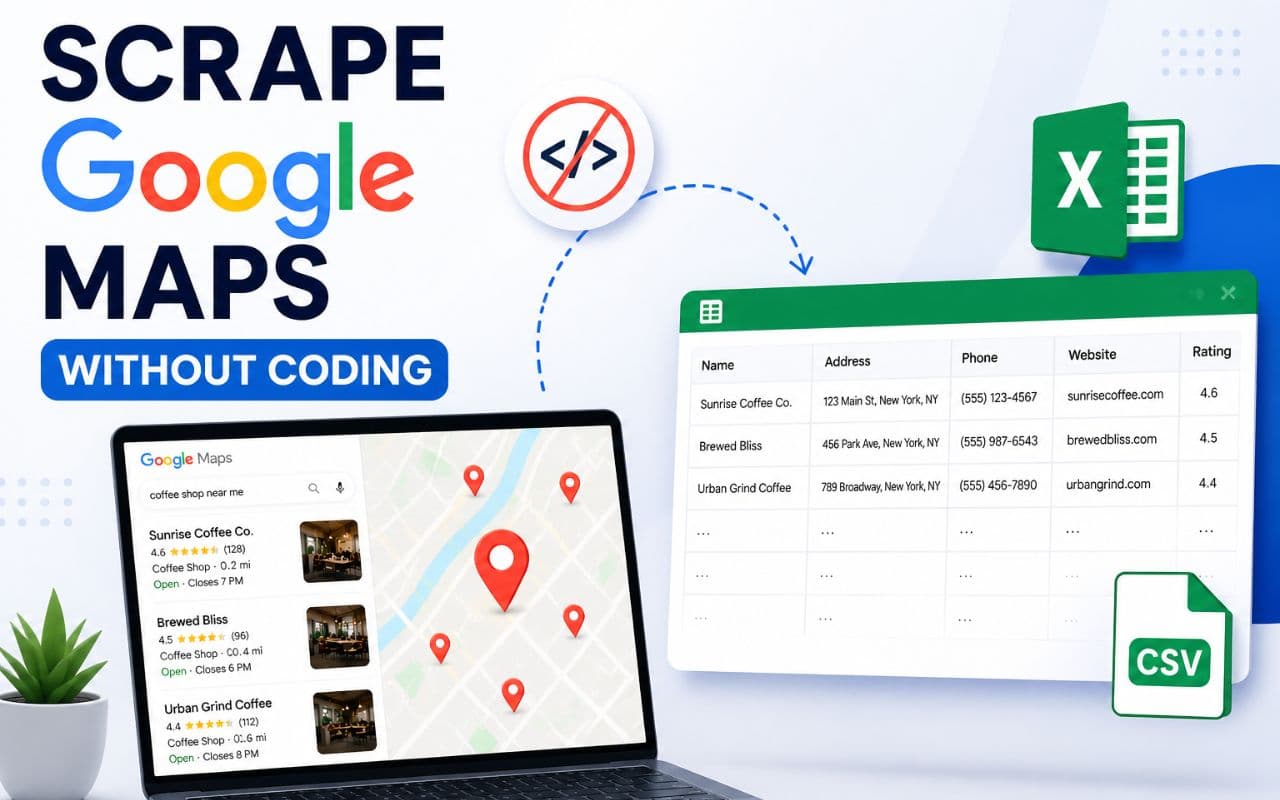
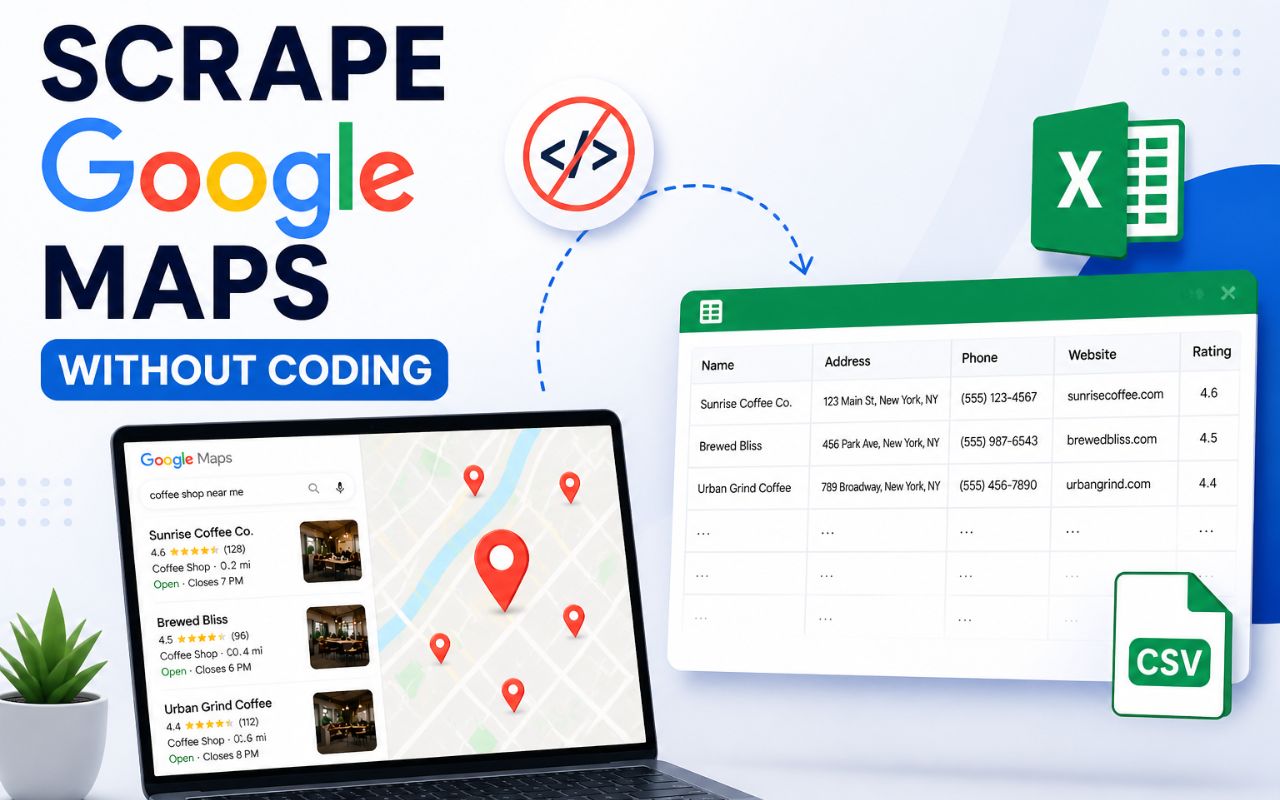
How to Scrape Google Maps Without Coding (No Tech Skills Needed)
Learn how to scrape Google Maps without coding using simple Chrome extensions. Extract business leads, emails, and phone numbers fast — no developer skills required.
You need business leads. You know they are sitting right there on Google Maps — thousands of local businesses with names, phone numbers, emails, addresses, ratings, and websites. But every time you try to collect that data manually, it takes hours. Copy, paste, switch tabs, scroll, repeat. It drains your time and slows down your outreach.
The good news? You can scrape Google Maps without coding. You do not need Python scripts, API setups, developer tools, or programming knowledge. There are tools available right now that let anyone — from a solo agency owner to a full sales team — pull structured business data from Google Maps in minutes using nothing more than a Chrome browser.
This guide walks you through everything: what Google Maps scraping actually means, why it matters for lead generation, the best no-code tools to use, a full step-by-step walkthrough, practical tips for better results, common mistakes to watch out for, and answers to the most searched questions on this topic.
What Does It Mean to Scrape Google Maps?
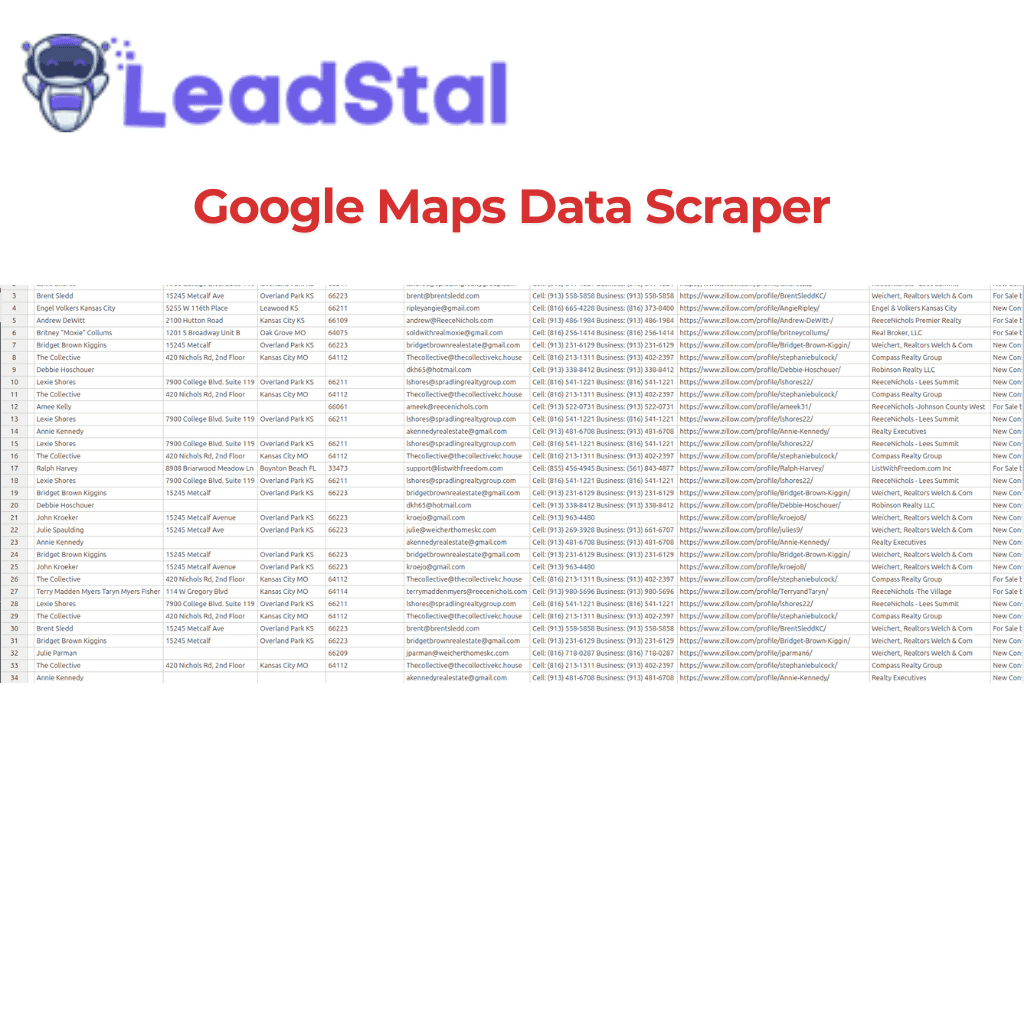
Scraping Google Maps means extracting business listing data from Google Maps search results and organizing it into a structured format like a spreadsheet. Instead of visiting each listing one by one and writing down contact details, a scraping tool does this automatically.
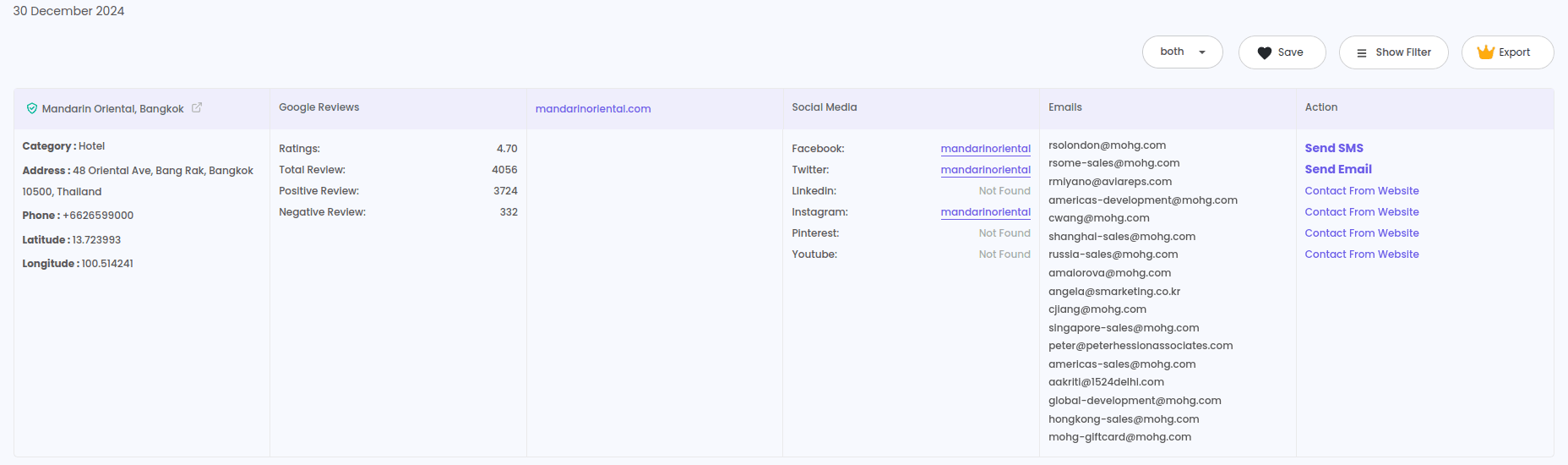
The data you can typically pull includes:
- Business name
- Phone number
- Email address
- Physical address (street, city, state, ZIP)
- Website URL
- Business category
- Rating score
- Review count
- Social media links
- Verified status
- Geographic coordinates (latitude and longitude)
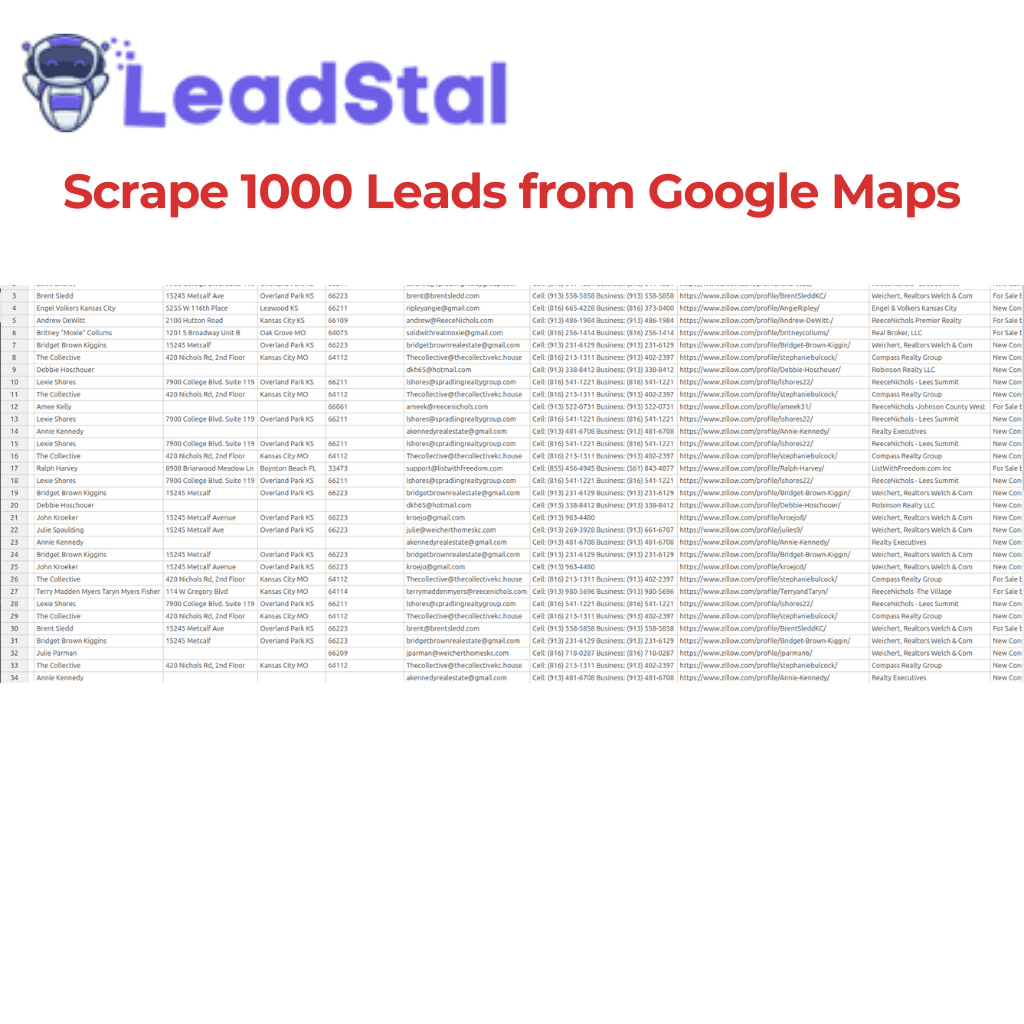
Once this data is collected, it gets exported into a CSV or Excel file that you can use for cold outreach, CRM imports, market research, or building targeted prospect lists.
The process itself does not require you to write a single line of code when you use the right tool.
Why Scraping Google Maps Matters for Lead Generation
Google Maps is one of the largest directories of local and regional businesses in the world. Every plumber, dentist, restaurant, gym, law firm, real estate agent, marketing agency, and retail store with a Google Business Profile shows up on the map with publicly listed contact information.
For people who rely on B2B sales, cold email campaigns, or local prospecting, this is a goldmine of contact data that refreshes constantly.
Here is why it matters for different types of users:
Small business owners can find potential partners, suppliers, or clients in their area without paying for expensive lead databases.
B2B sales teams can build geo-targeted prospect lists for outbound campaigns in a fraction of the time it would take to research each company manually.
Cold email marketers can collect verified business emails and phone numbers and feed them into their outreach workflows — pairing tools like a Google Maps lead generator with an email validator for cleaner sends.
Real estate agents and agencies can find property-related businesses, mortgage brokers, and service providers in target zip codes.
Recruiters can identify companies in specific industries and locations, then use a person email finder to reach the right contact.
Agency owners running lead generation services can scale their data collection across multiple cities and categories without hiring developers.
The bottom line: if your business depends on finding and contacting other businesses, Google Maps data gives you a direct path to those contacts — and scraping it without coding makes that path accessible to everyone.
Best No-Code Tools to Scrape Google Maps
Not every tool requires programming knowledge. Several options exist specifically for non-technical users who want to pull Google Maps data quickly. Here is a breakdown of the most practical ones.
1. LeadStal Google Maps Scraper
LeadStal's Google Maps Scraper is a Chrome extension built for business lead generation. It works directly inside your browser — no scripts, no terminal commands, no API tokens.
What it extracts: Business name, email, phone, address, website, category, rating, review count, verified status, social media links, and geographic coordinates.
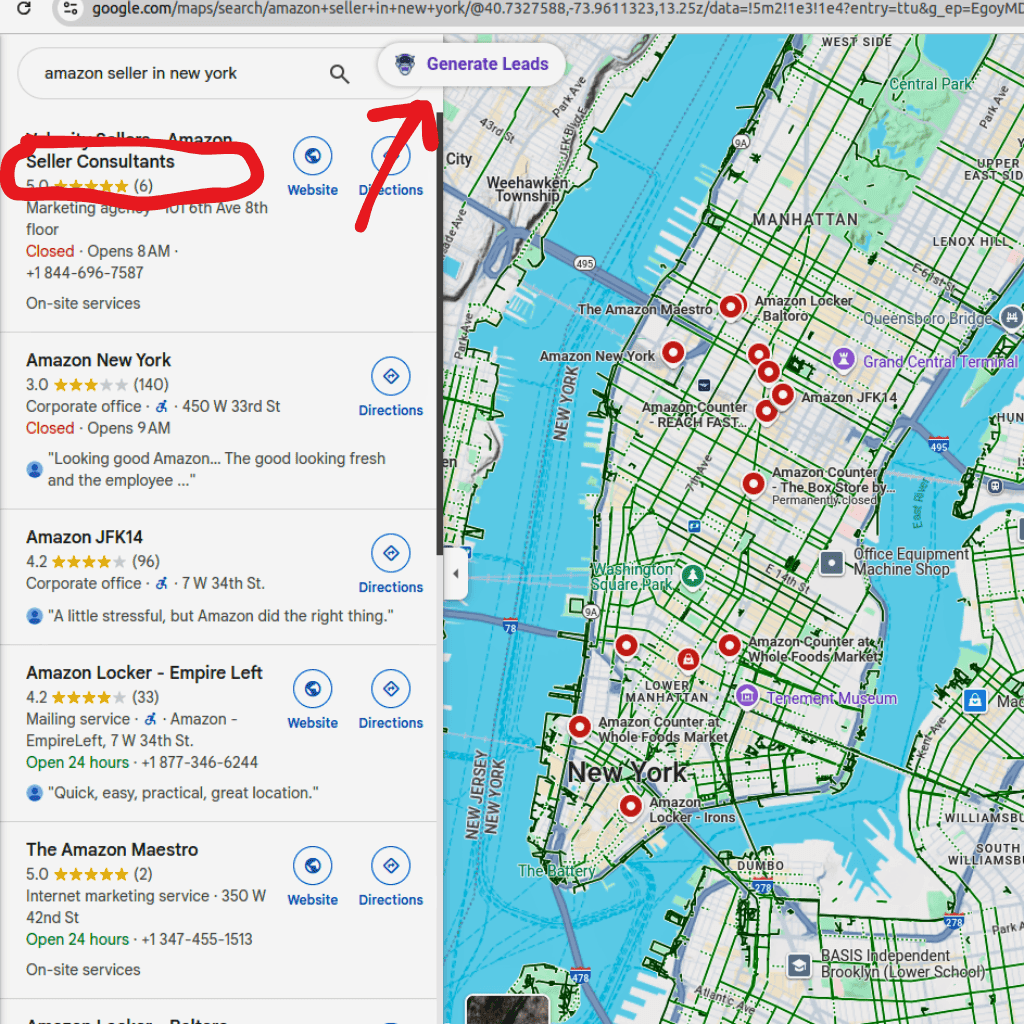
How it works: You open Google Maps, search for a business type, click "Generate Leads," and export the results to CSV or Excel.
Who it is best for: Sales teams, marketing agencies, local lead generation companies, real estate professionals, and anyone who needs structured business data from Google Maps without touching code.
Free plan: Allows up to 50 lead exports. Paid plans include unlimited exports and additional features.
You can install it from the Chrome Web Store.
2. Outscraper
Outscraper is a web-based scraping platform that offers Google Maps data extraction through its dashboard. Users enter search queries and locations, and the tool returns results in spreadsheet format.
Best for: Users who prefer a web app over a browser extension.
Limitation: Can get expensive at higher volumes.
3. PhantomBuster
PhantomBuster offers a Google Maps scraper as one of its many automation "Phantoms." It runs in the cloud, so you do not need to keep your browser open.
Best for: Users already using PhantomBuster for other scraping tasks.
Limitation: Requires some initial setup and configuration. Not as instant as a Chrome extension.
4. Apify Google Maps Scraper
Apify provides a Google Maps scraper actor that runs on their cloud platform. It offers a visual interface for setting up scraping tasks.
Best for: Users who want cloud-based scraping with scheduling options.
Limitation: The interface can feel complex for complete beginners.
5. MapLeadScraper
MapLeadScraper is a simpler desktop tool for extracting Google Maps business data. It focuses on ease of use with a point-and-click interface.
Best for: Users who want a standalone desktop application.
Limitation: Limited integrations with other lead generation tools.
Comparison Table: No-Code Google Maps Scraping Tools
The biggest difference with LeadStal is that it connects your scraping workflow directly to email finding, validation, and cold email outreach. Most other tools stop at data extraction and leave you to figure out the rest on your own.
Step-by-Step: How to Scrape Google Maps Without Coding Using LeadStal
Here is the full walkthrough. This process takes about five minutes from start to finish.
Step 1: Install the Chrome Extension
Download and install the LeadStal Google Maps Scraper extension. You can get it from the Chrome Web Store listing or from the LeadStal website.
If you download the extension package directly, extract the ZIP file, go to chrome://extensions, turn on Developer Mode, click "Load unpacked," and select the extracted folder.
Step 2: Open Google Maps
Go to Google Maps in your Chrome browser.
Step 3: Search for Your Target Business Category
Type in the business type, niche, or category you want to target. For example:
- "dentists in Austin TX"
- "real estate agents in Miami"
- "marketing agencies in Chicago"
- "gyms in Los Angeles"
- "plumbers in Denver"
Be specific with your search. The more targeted your query, the more relevant your results will be.
Step 4: Click "Generate Leads"
Once the map results load, click the LeadStal extension icon and hit the "Generate Leads" button. The tool will start scanning the visible listings and pulling data from each one.
Step 5: Wait for Data Extraction
Let the extension run. It will collect business names, phone numbers, emails, addresses, websites, ratings, categories, and other available data points from the listings.
Step 6: View and Review the Results
Click "View Result" to check the collected data before exporting. This lets you scan for completeness and make sure the results match your target criteria.
Step 7: Export to CSV or Excel
Click the export button and choose your preferred format — CSV or Excel. The file will download to your computer, ready to use in your CRM, email tool, or outreach platform.
Step 8: Validate Emails Before Outreach
Before sending any cold emails, run the exported email addresses through the LeadStal Email Validator to remove invalid or risky addresses. This step reduces bounce rates and protects your sender reputation.
Step 9: Start Your Outreach
With clean, validated data in hand, you can import your leads into a cold email platform. If you are already using LeadStal, the mail.leadstal.com platform lets you create campaigns, manage senders, track replies through Unibox, and monitor performance with built-in analytics — all from the same ecosystem.
Practical Tips for Better Google Maps Scraping Results
Getting data is one thing. Getting good data is another. Here are tips that make a real difference.
Use specific search terms. "Restaurants" is too broad. "Italian restaurants in Brooklyn NY" gives you a much more targeted and useful lead list.
Scrape by location zones. If you need leads across a large metro area, break it down into neighborhoods or zip codes. Run separate searches for each zone to capture more listings. Google Maps only shows a limited number of results per search.
Combine with email finding tools. Not every Google Maps listing includes an email address. After your scrape, use the Bulk Email Finder to fill in missing emails by searching the domains you collected.
Always validate before sending. Invalid emails cause bounces. Bounces hurt your sender score. Run every batch through an email verification step. This is non-negotiable for anyone doing cold outreach at scale.
Check for duplicate entries. When scraping multiple searches in the same region, you may get overlapping results. Deduplicate your spreadsheet before importing leads into your campaign.
Export in the format your tools accept. If your CRM or email platform prefers CSV, export to CSV. If you do your filtering in Excel first, export to Excel. Match the format to your workflow.
Scrape regularly. Business data changes. New businesses open. Old ones close. Phone numbers and emails get updated. Running fresh scrapes every few weeks keeps your lists current.
Common Mistakes to Avoid When Scraping Google Maps
Even with no-code tools, there are mistakes that can waste your time or reduce the quality of your leads. Here are the most common ones.
1. Scraping without a clear target. Running a broad search like "businesses in New York" gives you a messy, unfocused list. Start with a specific industry and location.
2. Skipping email validation. Sending emails to unverified addresses leads to high bounce rates, spam folder placement, and potential blacklisting of your sending domain.
3. Ignoring duplicate data. If you run multiple scrapes for overlapping areas, you will get duplicates. Clean your list before importing it anywhere.
4. Using outdated tools. Some older scraping tools break when Google Maps updates its interface. Use tools that are actively maintained and updated, like the LeadStal Google Maps Scraper.
5. Not enriching the data. A business name and address alone are not enough for cold outreach. Pair your Google Maps data with email finding tools like the Single Email Finder or Google Search Email Finder to build a more complete contact profile.
6. Exporting too much unfiltered data. Quality beats quantity. Filter by rating, review count, or category before exporting so your sales team works with better prospects.
7. Forgetting to segment leads. Group your leads by location, industry, or business size before running outreach. Segmented campaigns get better open and reply rates than generic blasts.
8. Not following up. Collecting leads is step one. The value comes from what you do after. Set up a follow-up sequence — tools like LeadStal's email templates give you tested copy you can adapt for your outreach.
Where Google Maps Scraping Fits in a Full Lead Generation Workflow
Scraping Google Maps is not the end of the process. It is the starting point. Here is how it fits into a complete lead generation workflow:
Step 1 → Scrape leads from Google Maps (or other sources like Instagram, Bing Maps, or Zillow).
Step 2 → Find missing emails using the Bulk Email Finder or Person Email Finder.
Step 3 → Validate all emails with the Email Validator.
Step 4 → Organize your lead list by industry, location, or priority.
Step 5 → Write your outreach emails using proven cold email templates.
Step 6 → Launch your campaign and manage replies through a centralized inbox.
Step 7 → Track performance with analytics to see what is working and what needs adjustment.
This is the exact workflow that platforms like LeadStal are built to support — from data collection to campaign execution in one connected system.
Frequently Asked Questions
1. Can I scrape Google Maps without knowing how to code?
Yes. Tools like the LeadStal Google Maps Scraper work as Chrome extensions. You search Google Maps, click a button, and export the data. No programming is needed.
2. Is it legal to scrape data from Google Maps?
Scraping publicly visible business information is a common practice. However, how you use the data matters. Always follow applicable data protection laws and email marketing regulations in your region. Do not scrape personal or private information.
3. What data can I extract from Google Maps?
You can typically extract business names, phone numbers, email addresses, physical addresses, website URLs, categories, ratings, review counts, social media profiles, and geographic coordinates.
4. What is the best free Google Maps scraper?
LeadStal offers a free plan that allows up to 50 lead exports. This is a good starting point for testing the tool before committing to a paid plan.
5. How do I export Google Maps data to Excel or CSV?
After running a scrape with a tool like LeadStal, click the export button and choose either CSV or Excel. The file downloads directly to your computer.
6. Can I get email addresses from Google Maps?
Some business listings include email addresses. For listings that do not, you can use the website URLs you scraped and run them through an email finding tool like the Bulk Email Finder to discover associated email addresses.
7. How many leads can I scrape from Google Maps at once?
Google Maps shows a limited number of results per search query. To get more leads, break your search into smaller geographic areas or more specific categories. Paid plans on tools like LeadStal allow unlimited exports.
8. Do I need a Google Maps API to scrape business data?
No. No-code tools like LeadStal work directly through the Chrome browser. You do not need a Google Cloud account, API setup, or developer credentials.
9. How accurate is the data from Google Maps scraping?
The data comes directly from Google Maps business listings. Accuracy depends on how well business owners maintain their profiles. Validating emails and verifying phone numbers before outreach helps ensure better data quality.
10. What should I do with Google Maps leads after scraping?
Validate the email addresses, remove duplicates, segment your list by industry or location, and start a targeted outreach campaign. You can use the leads for cold emailing, phone outreach, direct mail, or CRM-based follow-up sequences.
Start Building Your Lead List Today
You do not need a developer. You do not need expensive software subscriptions. You do not need to spend hours copying business details from Google Maps one listing at a time.
With the right no-code tool, you can scrape Google Maps without coding, export clean business data, find and verify email addresses, and start reaching out to prospects — all within the same afternoon.
If you are ready to test the process yourself, the LeadStal Google Maps Scraper gives you a free starting point with up to 50 lead exports. From there, you can pair it with the Email Validator, Bulk Email Finder, and the full outreach platform at mail.leadstal.com to turn raw data into real conversations.
Put this into action, for free
Find verified leads from Google Maps, Instagram and 30+ sources with LeadStal's free tools.
Start finding leads freeComments (3)
 Priya Nair· 2 days ago
This is exactly what I needed, pulled 300 leads in my niche the same afternoon. The export to CSV worked flawlessly.