How to Get Restaurant Leads from Google Maps (2026 Guide)
Learn how to collect restaurant leads from Google Maps with emails, phone numbers, and addresses. Step-by-step guide with tools and tips.
Restaurants are one of the most active business categories on Google Maps. Every city has hundreds — sometimes thousands — of restaurants with publicly listed names, addresses, phone numbers, websites, ratings, and sometimes email addresses. That makes Google Maps one of the fastest sources for building a restaurant lead list.
But collecting that data by hand is painfully slow. Opening one listing at a time, copying details into a spreadsheet, scrolling for more results, and repeating the process for every neighborhood or city burns hours that could be spent on actual outreach.
If you sell products or services to restaurants — food supply, POS systems, marketing services, delivery partnerships, cleaning supplies, staffing, interior design, or anything else — you need a faster way to get restaurant leads from Google Maps.
This guide shows you exactly how to do it. You will learn what restaurant lead generation from Google Maps actually involves, why it matters, which tools work best, how to use them step by step, and how to avoid the most common mistakes that waste time and produce bad data.
What Does It Mean to Get Restaurant Leads from Google Maps?
Getting restaurant leads from Google Maps means using a tool to automatically extract business listing data for restaurants from Google Maps search results and export it into a usable format like CSV or Excel.
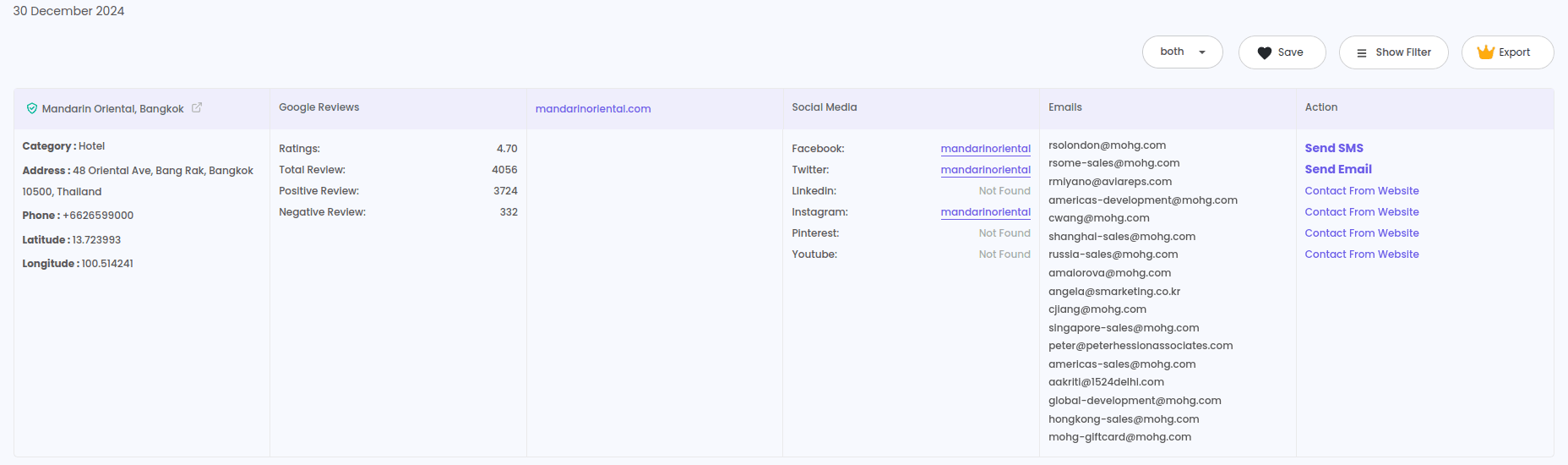
The data you can typically collect includes:
- Restaurant name
- Phone number
- Email address (when listed)
- Full address (street, city, state, ZIP)
- Website URL
- Business category and subcategory
- Rating score
- Total number of reviews
- Verified listing status
- Social media links (when available)
- Geographic coordinates
Once exported, this data becomes a ready-to-use contact list for cold email campaigns, phone outreach, direct mail, or CRM-based follow-up sequences.
The entire process — from search to export — can take just a few minutes when you use the right tool.
Who Needs Restaurant Leads and Why?
Restaurant leads are not just for food companies. A wide range of businesses and agencies sell to restaurant owners, and they all need accurate, up-to-date contact data.
Food and beverage suppliers need lists of restaurants in specific cities or regions to pitch their products. Google Maps gives them location-targeted data that matches their delivery zones.
POS and tech companies selling restaurant management software, reservation systems, or payment processing tools need verified restaurant contacts segmented by location and size.
Marketing agencies offering local SEO, social media management, website design, or review management to restaurants need a steady supply of fresh leads. Scraping restaurant leads from Google Maps gives them a repeatable source.
Cleaning and maintenance services targeting restaurants can use Google Maps data to build prospect lists by neighborhood, city, or zip code.
Staffing agencies focused on hospitality need to identify restaurants in their service area and reach the right person at each location.
Delivery and logistics companies looking to sign up new restaurant partners can use Google Maps to find businesses that are not yet on their platform.
Cold email marketers and lead generation agencies serving any of the above industries need a fast way to build segmented restaurant lists with verified contact details.
In every case, the same challenge applies: finding restaurant contact data fast, keeping it accurate, and getting it into a format that works for outreach.
Best Tools to Collect Restaurant Leads from Google Maps
Several tools can extract restaurant data from Google Maps without coding. Here is how the most practical options compare.
1. LeadStal Google Maps Scraper
The LeadStal Google Maps Scraper is a Chrome extension built for business lead extraction. It works directly in your browser — no scripts, no API setup, no technical configuration.
What it extracts: Restaurant name, email, phone, address, website, category, rating, review count, verified status, social media links, and GPS coordinates.
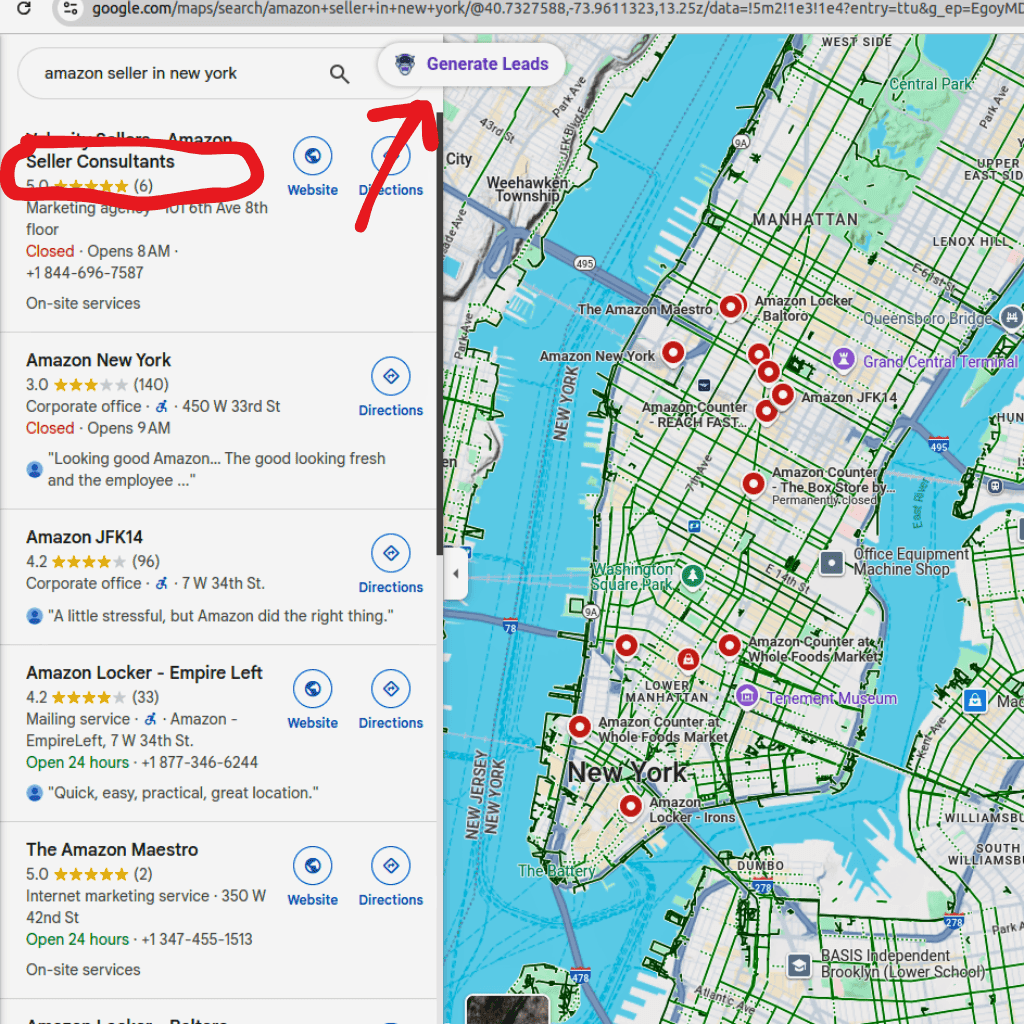
How it works: Search for restaurants on Google Maps, click "Generate Leads," and export the data to CSV or Excel.
What makes it different: LeadStal connects scraping to the rest of the lead generation workflow. After collecting restaurant data, you can verify emails with the email verification tool, find missing contacts with the Bulk Email Finder, and send cold outreach through mail.leadstal.com.
Free plan: 50 lead exports at no cost. Paid plans include unlimited exports.
Get it here: Chrome Web Store
Best for: Agencies, cold email marketers, small business owners, and anyone who needs restaurant data that flows directly into an outreach pipeline.
2. Outscraper
Outscraper is a web-based platform that offers Google Maps data extraction through a dashboard. You enter search queries and locations, and the tool returns results as downloadable files.
Best for: Users who prefer batch processing through a web interface rather than a browser extension.
Limitation: No built-in email validation or outreach tools. Costs increase with volume.
3. PhantomBuster
PhantomBuster includes a Google Maps scraping module within its automation suite. It runs in the cloud, so your browser does not need to stay open.
Best for: Teams already using PhantomBuster for other scraping or automation tasks.
Limitation: More setup required than a simple Chrome extension. The learning curve is noticeable for first-time users.
4. Apify
Apify offers a Google Maps scraper that runs on cloud infrastructure with advanced options like scheduling, proxies, and large-volume runs.
Best for: High-volume users who need technical control over scraping jobs.
Limitation: Not beginner-friendly. The interface and configuration options can overwhelm non-technical users.
Restaurant Lead Collection: Tool Comparison Table
The biggest practical difference is that LeadStal gives you a connected workflow — scraping, email finding, validation, and campaign sending all work together. The other tools stop at data extraction.
How to Get Restaurant Leads from Google Maps: Step-by-Step
Here is the full process using the LeadStal Chrome extension. It takes less than ten minutes from start to finish.
Step 1: Install the Chrome Extension
Download the LeadStal Google Maps Scraper from the Chrome Web Store or from the LeadStal Google Maps Scraper page.
For manual installation: extract the ZIP file, go to chrome://extensions, enable Developer Mode, click "Load unpacked," and select the folder.
Step 2: Open Google Maps
Go to Google Maps in Chrome.
Step 3: Search for Restaurants in Your Target Area
Type a specific search query. The more targeted your search, the better your lead quality.
Strong search examples:
- "Italian restaurants in Chicago"
- "fast food restaurants in Houston TX"
- "fine dining restaurants in Manhattan"
- "restaurants in Austin TX 78701"
- "pizza places in Denver CO"
- "seafood restaurants in Miami Beach"
Weak search examples to avoid:
- "restaurants" (too broad, no location)
- "food places in USA" (too wide, unfocused results)
Step 4: Click "Generate Leads"
Open the LeadStal extension and press the "Generate Leads" button. The tool starts scanning the visible map listings and collecting data from each one.
Step 5: Wait for Extraction to Finish
The extension works through the results automatically. This typically takes a few minutes depending on how many listings appear.
Step 6: Preview the Data
Click "View Result" to check the extracted data. Look for completeness — are names, phone numbers, and websites populated? Are there email addresses?
Step 7: Export to CSV or Excel
Click export and choose your format. The file downloads directly to your computer, ready for CRM imports, spreadsheet filtering, or outreach platform uploads.
Step 8: Find Missing Email Addresses
Many restaurant listings on Google Maps do not include an email address. To fill the gaps, take the website URLs you collected and run them through the Bulk Email Finder. You can also use the website email extractor to scan individual restaurant websites for visible email addresses.
For reaching a specific person — like the owner or general manager — the Person Email Finder lets you search by name and company domain.
Step 9: Validate Every Email
Before sending a single cold email, run your entire list through the LeadStal Email Validator. This removes invalid, inactive, and risky addresses — protecting your sender reputation and reducing bounce rates.
Step 10: Start Outreach
Import your validated restaurant leads into your cold email tool. If you are using the LeadStal platform, mail.leadstal.com lets you build campaigns, assign sender accounts, manage replies through Unibox, and track opens and clicks with built-in analytics.
Need copy ideas? The cold email templates library has 150+ tested examples you can adapt for restaurant outreach.
Practical Tips for Collecting Better Restaurant Leads
Search by cuisine type for tighter targeting. "Thai restaurants in Portland" gives you a much more focused list than "restaurants in Portland." If your product or service fits a specific restaurant type, filter at the search stage.
Break cities into neighborhoods. Google Maps limits the number of results per search. If you are targeting a large city, run separate searches for each neighborhood or zip code to capture more listings.
Use multiple data sources. Google Maps is a great starting point, but it is not the only source. Supplement your list with data from Bing Maps or the Google Search email scraper to find restaurants that might not appear in your initial Maps search.
Filter by review count and rating. A restaurant with 500 reviews and a 4.5 rating is likely a well-established business. One with 3 reviews and no website might not be the right prospect. Use quality signals to prioritize your outreach list.
Validate before you send. This step is not optional. Sending cold emails to bad addresses damages your domain reputation, lands you in spam folders, and wastes your campaign budget.
Scrape on a regular schedule. Restaurants open and close constantly. Contact details change. Running fresh extractions every few weeks keeps your pipeline stocked with current data.
Segment your list before outreach. Group restaurants by cuisine type, city, rating tier, or any other relevant criteria. Segmented campaigns with personalized messaging get significantly higher reply rates than generic mass emails.
Common Mistakes When Collecting Restaurant Leads
1. Searching too broadly. "Restaurants in California" produces a massive, unfocused list. Target specific cities and neighborhoods instead.
2. Skipping email validation. Sending to unverified emails causes bounces, spam complaints, and potential blacklisting. Always validate.
3. Only using Google Maps. It is a strong source, but not the only one. Cross-reference with Bing Maps data and Google Search results for a more complete list.
4. Not enriching the data. A restaurant name and phone number are not enough for effective cold email. Use email finders to attach verified email addresses before launching outreach.
5. Ignoring duplicates. Running overlapping searches produces duplicate entries. Deduplicate your spreadsheet before importing into any outreach platform.
6. Using a broken or outdated tool. Google Maps updates its interface regularly. Tools that are not maintained will stop working. Stick with actively updated tools like the LeadStal Google Maps Scraper.
7. Sending the same email to every restaurant. A fine dining restaurant and a fast food chain have very different needs. Write targeted copy for each segment.
8. Scraping once and calling it done. Restaurant data goes stale fast. New locations open, old ones close, and contact info changes. Build scraping into your monthly routine.
How Restaurant Lead Collection Fits a Full Outreach Workflow
Collecting restaurant leads from Google Maps is step one. Here is how it connects to the rest of a working outreach pipeline:
Step 1 → Scrape restaurant data from Google Maps. Add more leads from Bing Maps or Instagram if you want to reach restaurant owners on social media.
Step 2 → Find missing emails using the Bulk Email Finder or Person Email Finder.
Step 3 → Validate every address with the Email Validator.
Step 4 → Segment your list by cuisine, location, rating, or business size.
Step 5 → Write outreach emails using tested cold email templates as starting points.
Step 6 → Launch campaigns and track results through analytics.
Step 7 → Manage replies through a centralized inbox and follow up with interested leads.
This is the full workflow that LeadStal supports from data collection to campaign execution.
Frequently Asked Questions
1. How do I get restaurant leads from Google Maps?
Search for restaurants in a specific location on Google Maps, use a scraping tool like the LeadStal Chrome extension to extract listing data, and export the results to CSV or Excel. Then verify emails and start outreach.
2. What data can I extract from restaurant listings on Google Maps?
You can typically collect the restaurant name, phone number, email (when listed), full address, website URL, business category, rating, review count, social media profiles, and GPS coordinates.
3. Do I need coding skills to scrape restaurant data from Google Maps?
No. Chrome extension tools like the LeadStal Google Maps Scraper work with a few clicks — no programming, scripts, or API keys required.
4. Can I get restaurant email addresses from Google Maps?
Some listings include email addresses directly. For those that do not, use the website domains you collected and run them through a bulk email finder to discover associated contacts.
5. Is it legal to collect restaurant data from Google Maps?
Collecting publicly visible business information is a widely used industry practice. However, you must comply with data protection and email marketing laws in your region when using the data for outreach.
6. What is the best free tool for scraping restaurant leads?
LeadStal offers a free plan with up to 50 lead exports. This is a practical way to test the tool before upgrading to a paid plan for unlimited exports.
7. How many restaurant leads can I collect in one search?
Google Maps limits results per search query. To collect more, break your target area into smaller zones — individual neighborhoods or zip codes — and run separate searches for each.
8. How do I export restaurant leads to Excel?
After running a scrape with a tool like LeadStal, click the export button and select Excel format. The file downloads directly to your computer.
9. Should I validate restaurant emails before sending cold outreach?
Yes. Sending emails to invalid addresses causes bounces, damages your sender reputation, and can get your domain blacklisted. Always validate before sending.
10. How often should I scrape for new restaurant leads?
Restaurant data changes frequently — new locations open, old ones close, and contact info gets updated. Running fresh scrapes every two to four weeks keeps your lists accurate and your pipeline active.
Build Your Restaurant Lead List Today
Restaurant owners are a massive addressable market, and their contact information is publicly available on Google Maps. The only thing standing between you and a working prospect list is the right extraction tool and a clean process.
Start by collecting restaurant leads from Google Maps with a tool like the LeadStal Google Maps Scraper — 50 leads are free. Verify emails with the Email Validator, fill in missing contacts with the Bulk Email Finder, and launch your first campaign through mail.leadstal.com.
The data is already on the map. Now it is time to put it to work.
Put this into action, for free
Find verified leads from Google Maps, Instagram and 30+ sources with LeadStal's free tools.
Start finding leads freeComments (3)
 Priya Nair· 2 days ago
This is exactly what I needed, pulled 300 leads in my niche the same afternoon. The export to CSV worked flawlessly.